# Enter Data Manually
This article explains how to manually enter data into PowerTable to build an app.
You'll enter data to create a table in a database, then write back any subsequent changes to the same database using the PowerTable sheet.
{% hint style="info" %}
#### Important
This feature is in preview.
{% endhint %}
### Prerequisites
Before you begin, make sure that you have the following prerequisites in place:
* Connections established to the [Fabric SQL database](/planning-sheets/how-tos/create-a-database-connection.md) and the [semantic model](/planning-sheets/how-tos/create-and-share-a-cloud-connection-for-a-semantic-model-sp.md) that contains the data for your PowerTable.
* A [Plan item](/planning-sheets/how-tos/creating-a-planning-sheet.md#create-a-planning-sheet) created in your Fabric workspace.
#### Create a PowerTable sheet
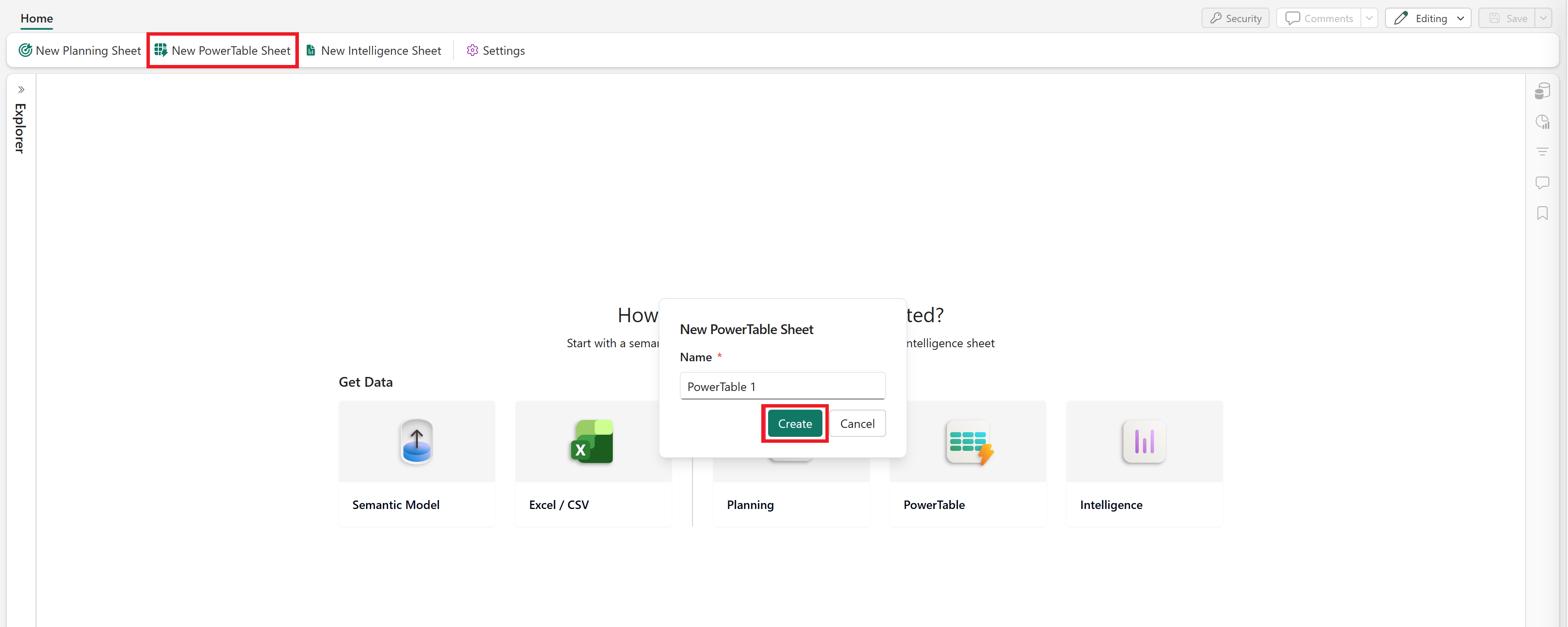
1. In your Plan, select **New PowerTable Sheet** or select the **PowerTable** icon on the landing page. Enter a name for the sheet and select **Create**.
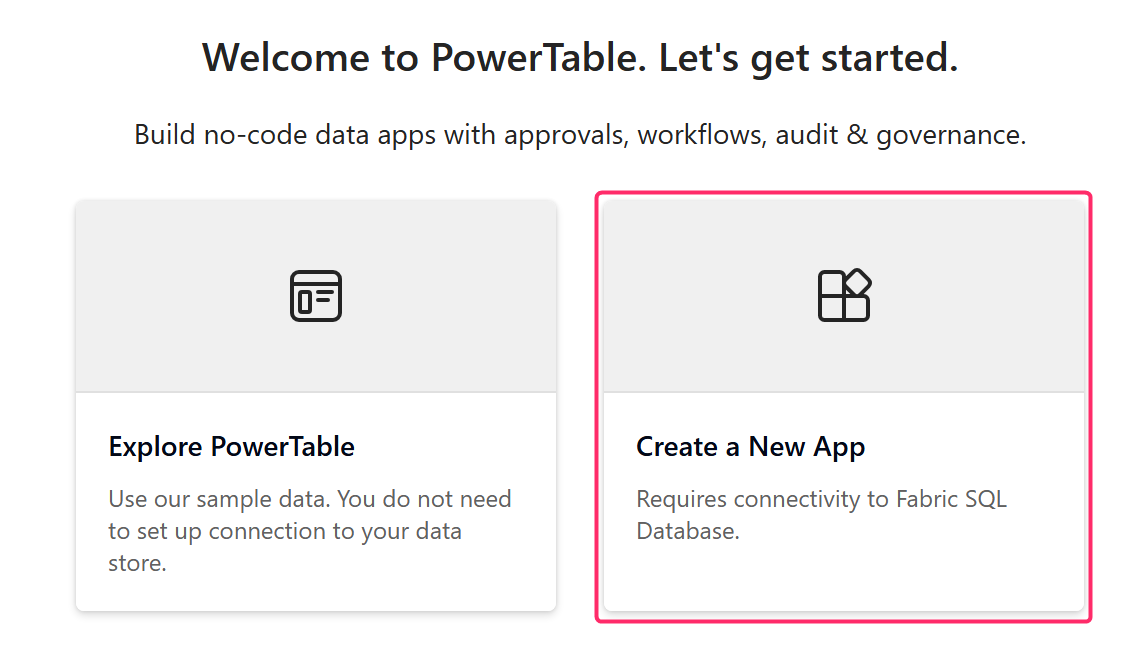
2. Select **Create a New App** to create your app. You can also select **Explore PowerTable** to experience a sample PowerTable app.
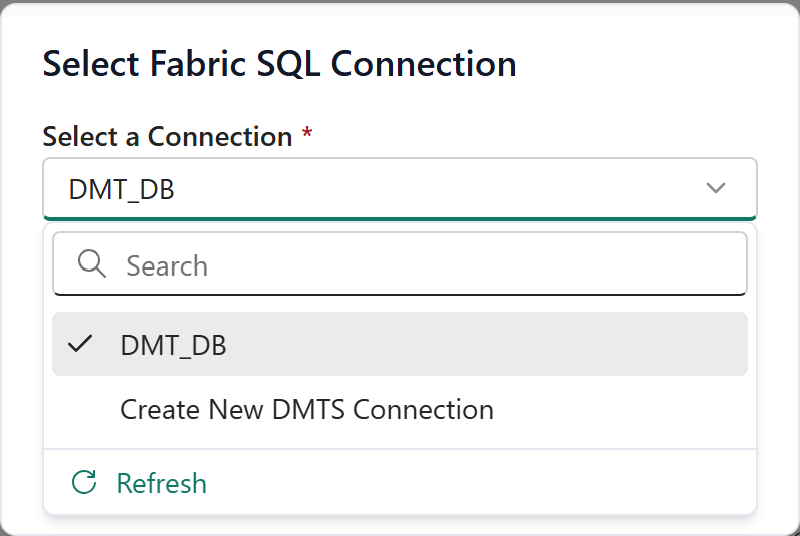
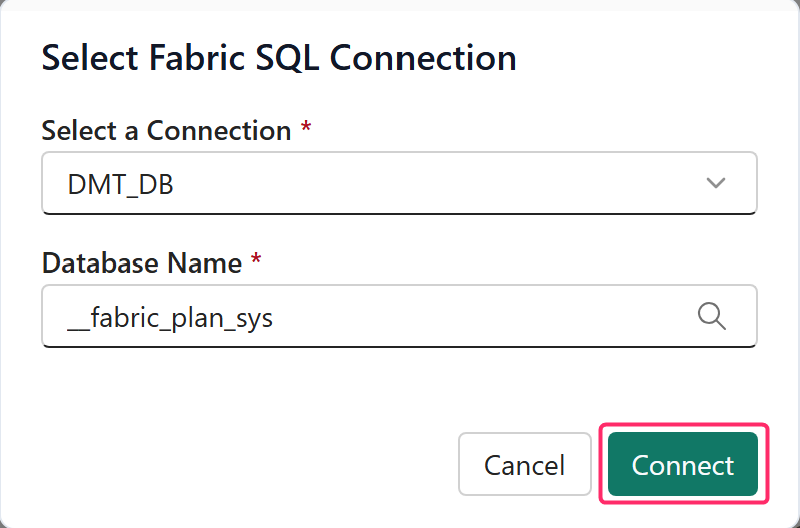
3. **Select a Connection:** Choose a Fabric SQL connection. You can also create a new connection if required.
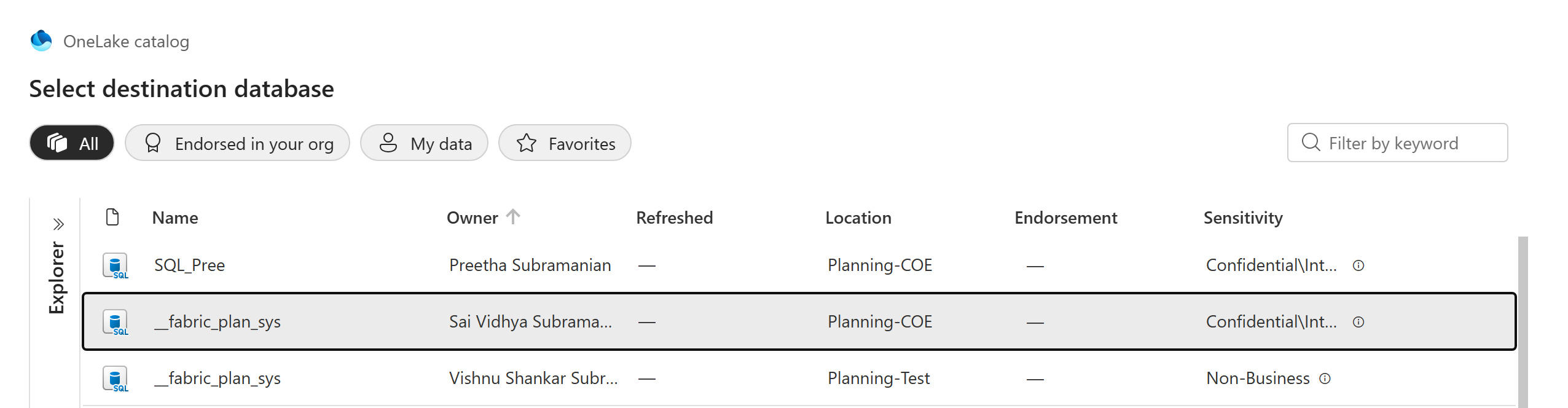
4. **Database Name:** Select the Fabric SQL database to store the app metadata. Select **Add**.
{% hint style="info" %}
#### Note
When a new Plan item is created in a workspace, a Fabric SQL database is automatically created for that workspace. This database stores all the plan app metadata for workspace users. You can choose this database.
{% endhint %}
5. Select **Connect** after choosing the connection and the database.
### Create a table
To create a new table in the database and enter the data manually, follow these steps:
1. Select **New Table**.
2. Choose the database schema and enter a **Table Name**.
3. Select **Enter Data Manually** in the **Import Data** section.
4. Select **Next.**
5. Configure your table by adding the column name, primary key, and other relevant details like length, precision, scale, etc., wherever applicable.
6. Select **Add Column** to add a new column. Use the bin icon to delete a column.
7. Click **Finish** after entering all the column details.
8. An empty table is successfully created using PowerTable, with the configured columns.
9. You can now insert rows into this table using the **Insert Row** option.
10. Select **Preview Changes** to preview the added rows and changes.
11. To discard the changes, select **Discard Changes.**
12. After previewing, select **Save to Database** and **Proceed** to save the rows to the table in the database.
13. Finally, select **Save** at the top right corner to save the PowerTable sheet.
### Related Content
1. [Create a table app with PowerTable by importing an Excel or a CSV file](/powertable-sheets/how-tos/create-a-table-app-with-powertable-sheets.md)
2. [Connect PowerTable sheet to a semantic model](/powertable-sheets/how-tos/connect-powertable-sheet-to-a-semantic-model.md)
3. [Connect to an existing database](/powertable-sheets/how-tos/connect-to-a-database.md)
### Next steps
Configure [access control](/powertable-sheets/how-tos/set-up-row-and-column-access-control.md) and automated workflows and [approvals](/powertable-sheets/how-tos/approval-flow/configure-approval-workflow.md) for your new app.
---
# Agent Instructions: Querying This Documentation
If you need additional information that is not directly available in this page, you can query the documentation dynamically by asking a question.
Perform an HTTP GET request on the current page URL with the `ask` query parameter:
```
GET https://docs.fabricplan.com/powertable-sheets/how-tos/enter-data-manually.md?ask=
```
The question should be specific, self-contained, and written in natural language.
The response will contain a direct answer to the question and relevant excerpts and sources from the documentation.
Use this mechanism when the answer is not explicitly present in the current page, you need clarification or additional context, or you want to retrieve related documentation sections.