> For the complete documentation index, see [llms.txt](https://docs.fabricplan.com/llms.txt). Markdown versions of documentation pages are available by appending `.md` to page URLs; this page is available as [Markdown](https://docs.fabricplan.com/planning-sheets/how-tos/infobridge/data-transformations/text-functions.md).
# Text functions
Text functions in Infobridge help you prepare text fields for reporting, analysis, and writeback. Use **Extract** to create a new text column from an existing column by position, length, first characters, last characters, or delimiter. Use **Format** to change casing, remove leading or trailing spaces, or add a prefix or suffix.
You can find the text functions on the **Transform** tab in the **Text** group.
### Extract text
The **Extract** transformation creates a new column by extracting characters from a selected text column. You can extract characters by range, length, first characters, last characters, or delimiter.
#### Extract a range of text
Use **Range** to extract characters from a specific starting position for a fixed number of characters. The following example uses the **Postal Code** column, which contains values such as `79907Central`, where the first five characters represent the postal code.
1. On the **Transform** tab, in the **Text** group, select **Extract**.
2. In the **Extract** dialog, configure the extraction:
1. In **Target column**, select **Postal Code**.
2. In **Extract Type**, select **Range**.
3. In **Starting Index**, enter `1`.
4. In **Number of Characters**, enter `5`.
3. Select **Apply**.
A new **Postal Code Range** column is created with the extracted five-character postal code values.
#### Extract text length
Use **Length** to return the number of characters in a text value. The following example uses the **Product Category** column and adds the length of each value as a new column.
1. On the **Transform** tab, in the **Text** group, select **Extract**.
2. In the **Extract** dialog, configure the extraction:
1. In **Target column**, select **Product Category**.
2. In **Extract Type**, select **Length**.
3. Select **Apply**.
A new **Product Category Length** column is created with the character count for each value.
#### Extract the first or last characters
Use **First Characters** or **Last Characters** to extract a specified number of characters from the beginning or end of a text value.
The following example extracts the first five characters from the **Postal Code** column. The same workflow applies when extracting the last characters, except that you select **Last Characters** as the **Extract Type**.
1. On the **Transform** tab, in the **Text** group, select **Extract**.
2. In the **Extract** dialog, configure the extraction:
1. In **Target column**, select **Postal Code**.
2. In **Extract Type**, select **First Characters**.
3. In **Count**, enter `5`.
3. Select **Apply**.
A new **Postal Code First Characters** column is created with the first five characters from each postal code value.
#### Extract text before a delimiter
Use **Text Before Delimiters** to extract the text that appears before a specific delimiter. The following example uses the **Product Category** column, which contains values such as `Furniture-Bookcases`. The extraction returns the text before the hyphen (`-`).
1. On the **Transform** tab, in the **Text** group, select **Extract**.
2. In the **Extract** dialog, configure the extraction:
1. In **Target column**, select **Product Category**.
2. In **Extract Type**, select **Text Before Delimiters**.
3. In **Delimiter**, enter `-`.
3. Select **Apply**.
A new **Product Category Before Delimiter** column is created. The column contains the text before the hyphen, such as `Furniture`.
#### Extract text after a delimiter
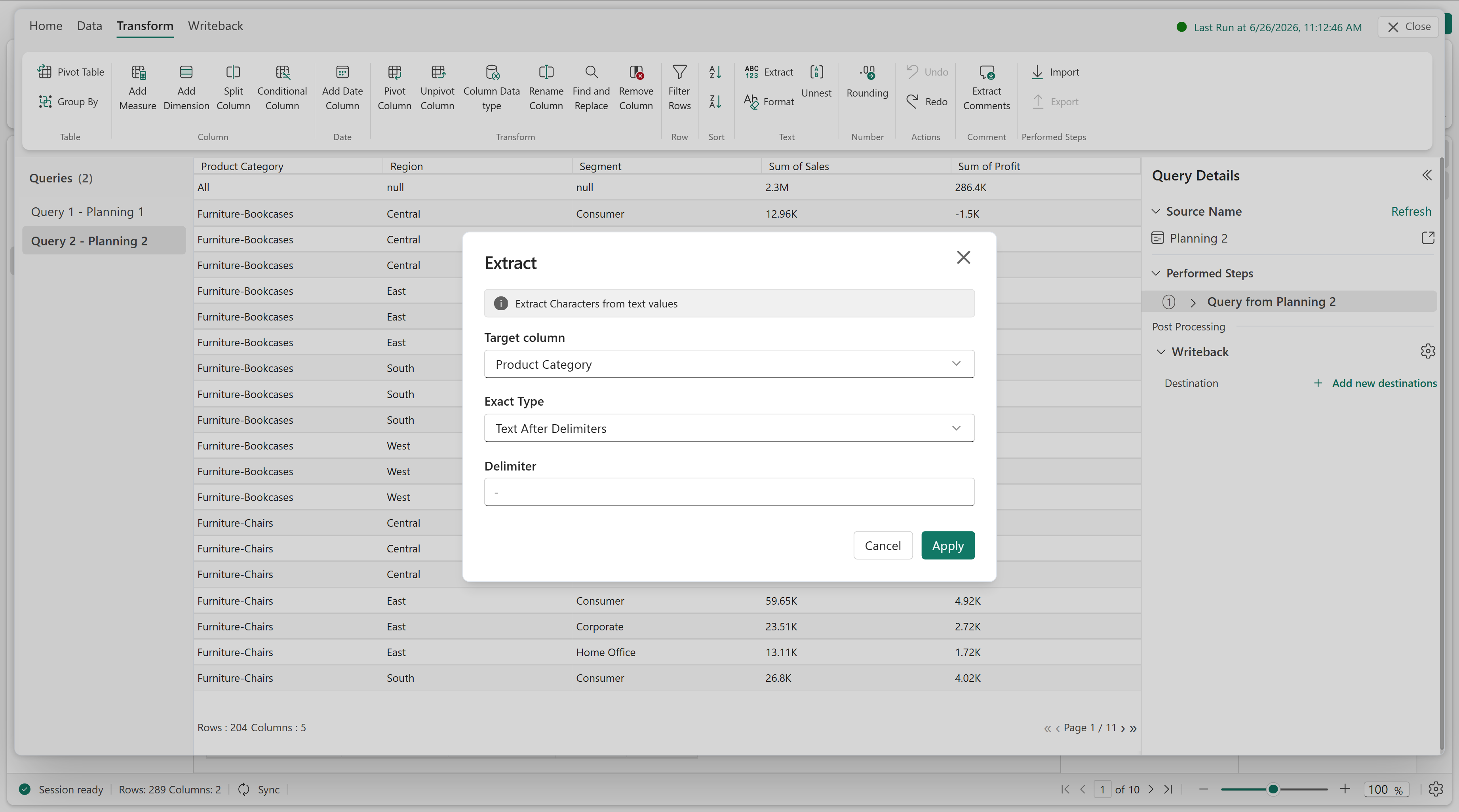
Use **Text After Delimiters** to extract the text that appears after a specific delimiter. The following example uses the **Product Category** column, which contains values such as `Furniture-Bookcases`. The extraction returns the text after the hyphen (`-`).
1. On the **Transform** tab, in the **Text** group, select **Extract**.
2. In the **Extract** dialog, configure the extraction:
1. In **Target column**, select **Product Category**.
2. In **Extract Type**, select **Text After Delimiters**.
3. In **Delimiter**, enter `-`.
3. Select **Apply**.
A new **Product Category After Delimiter** column is created. The column contains the text after the hyphen, such as `Bookcases` or `Chairs`.
### Format text
Use the **Format** transformation to modify text values in one or more columns.
You can convert text case, trim leading or trailing spaces, or add prefixes and suffixes.
1. On the **Transform** tab, in the **Text** group, select **Format**.
2. In the **Format** dialog, select **Formatting Type** to view the available options.
#### Convert text to uppercase or lowercase
Use **Uppercase** or **Lowercase** to convert text values in one or more selected columns.
The following example converts the **Region** and **Segment** columns to uppercase. The same workflow applies when converting text to lowercase, except that you select **Lowercase** as the **Formatting Type**.
1. On the **Transform** tab, in the **Text** group, select **Format**.
2. In the **Format** dialog, configure the formatting:
1. In **Target column**, select **Region** and **Segment**.
2. In **Formatting Type**, select **Uppercase**.
3. Select **Apply**.
The values in the **Region** and **Segment** columns are converted to uppercase.
#### Trim spaces
Use **Trim** to remove leading and trailing spaces from text values. The following example uses the **Product Classification** column to clean the product identifiers.
1. On the **Transform** tab, in the **Text** group, select **Format**.
2. In the **Format** dialog, configure the formatting:
1. In **Target column**, select **Product Classification**.
2. In **Formatting Type**, select **Trim**.
3. Select **Apply**.
Leading and trailing spaces are removed from the **Product Classification** values.
#### Add a prefix or suffix
Use **Add prefix** or **Add suffix** to add a fixed text value before or after each value in a selected column.
The following example demonstrates how to add a prefix to the **Product Classification** column. The same workflow applies when adding a suffix, except that you specify a suffix value instead of a prefix.
1. On the **Transform** tab, in the **Text** group, select **Format**.
2. In the **Format** dialog, configure the formatting:
1. In **Target column**, select **Product Classification**.
2. In **Formatting Type**, select **Add prefix**.
3. In **Prefix**, enter `PRD-`.
3. Select **Apply**.
The **Product Classification** values are updated with the `PRD-` prefix.
---
# Agent Instructions
This documentation is published with GitBook. GitBook is the documentation platform designed so that both humans and AI agents can read, navigate, and reason over technical content effectively. Learn more at gitbook.com.
## Querying This Documentation
If you need additional information that is not directly available in this page, you can query the documentation dynamically by asking a question.
Perform an HTTP GET request on the current page URL with the `ask` query parameter, and the optional `goal` query parameter:
```
GET https://docs.fabricplan.com/planning-sheets/how-tos/infobridge/data-transformations/text-functions.md?ask=&goal=
```
`ask` is the immediate question: it should be specific, self-contained, and written in natural language.
`goal` is optional and describes the broader end goal you are ultimately trying to accomplish on behalf of the user. GitBook uses it to tailor the answer towards what is most useful for that goal.
The response will contain a direct answer to the question and relevant excerpts and sources from the documentation.
Use this mechanism when the answer is not explicitly present in the current page, you need clarification or additional context, or you want to retrieve related documentation sections.