> For the complete documentation index, see [llms.txt](https://docs.fabricplan.com/llms.txt). Markdown versions of documentation pages are available by appending `.md` to page URLs; this page is available as [Markdown](https://docs.fabricplan.com/planning-sheets/how-tos/basic-formatting/total-and-subtotals.md).
# Total and Subtotals
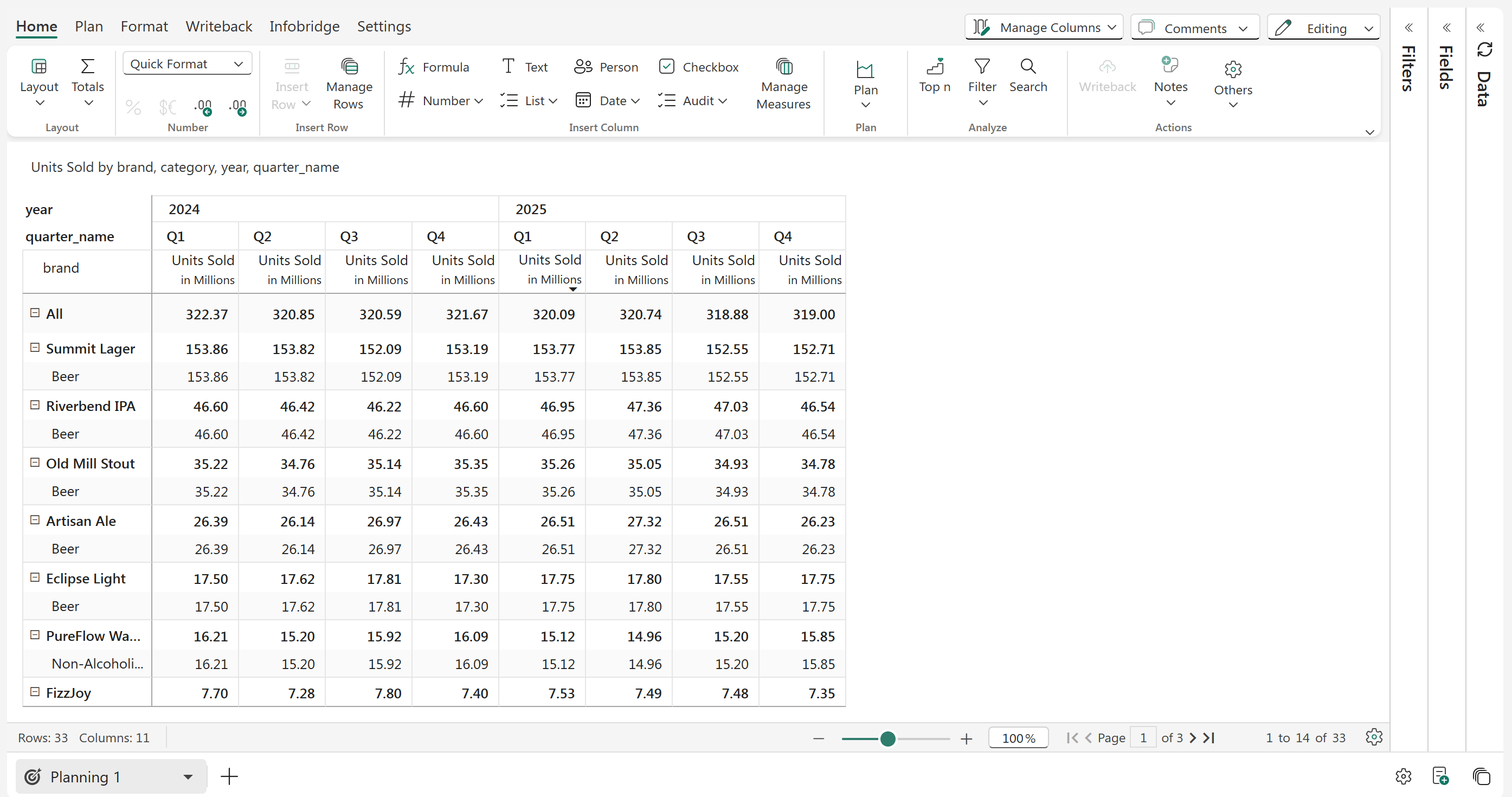
Consider the example below, we have hierarchies across both rows & columns.
Matrix with row and column hierarchies
Note that
(a) The row subtotals are at the top, and
(b) The row grand total is the top
(c) There are no subtotals and grand totals for columns.
## 1. Totals
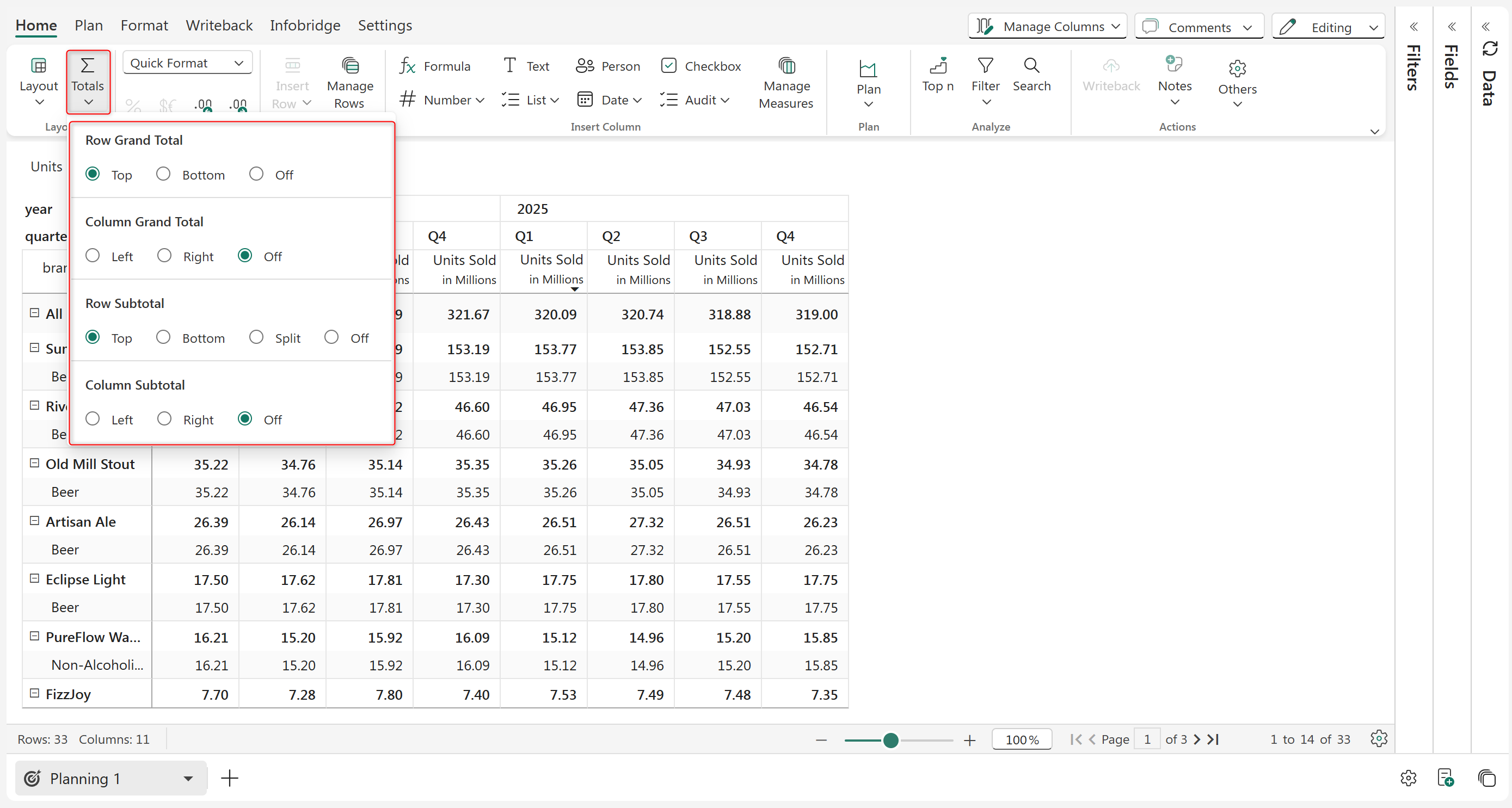
The totals can be viewed under the 'Totals Tab' in the Home toolbar. There are options to enable/disable subtotals and totals, as well as to change their positions.
Options under Totals
{% hint style="info" %}
Subtotals for rows and/or columns will appear only when a hierarchical structure exists within the respective fields.
{% endhint %}
### 1.1 Row Grand Total and Subtotal
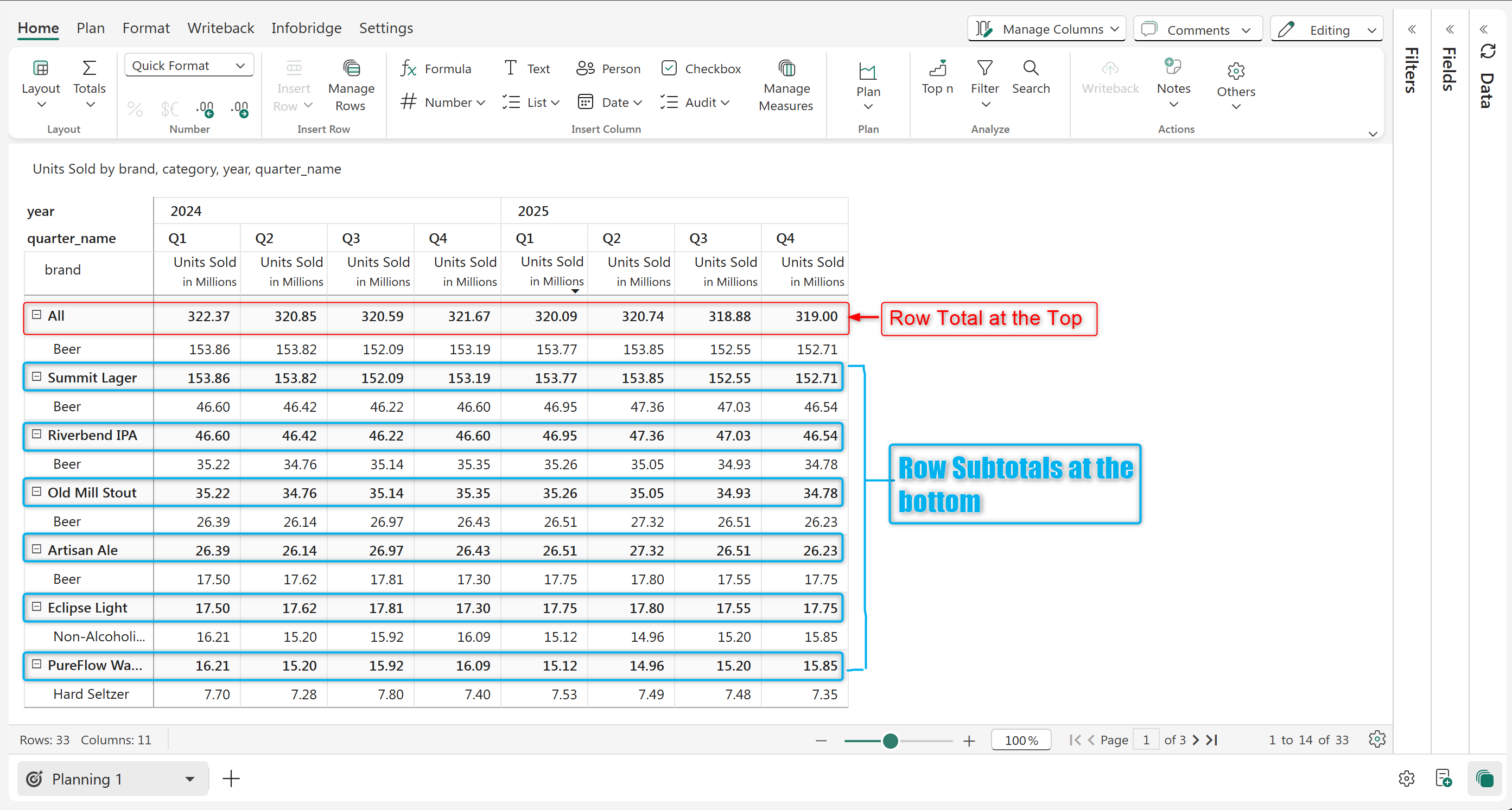
You can choose to display the grand total of the rows or the subtotal of hierarchical rows either at the top of the rows or at the bottom of the rows by selecting the Top or Bottom option. You can even hide it by selecting the off option. In addition, row Subtotals can be split using the split option.
Row Totals at the Top and Subtotal at the Bottom
### 1.2 Split in Row Subtotal
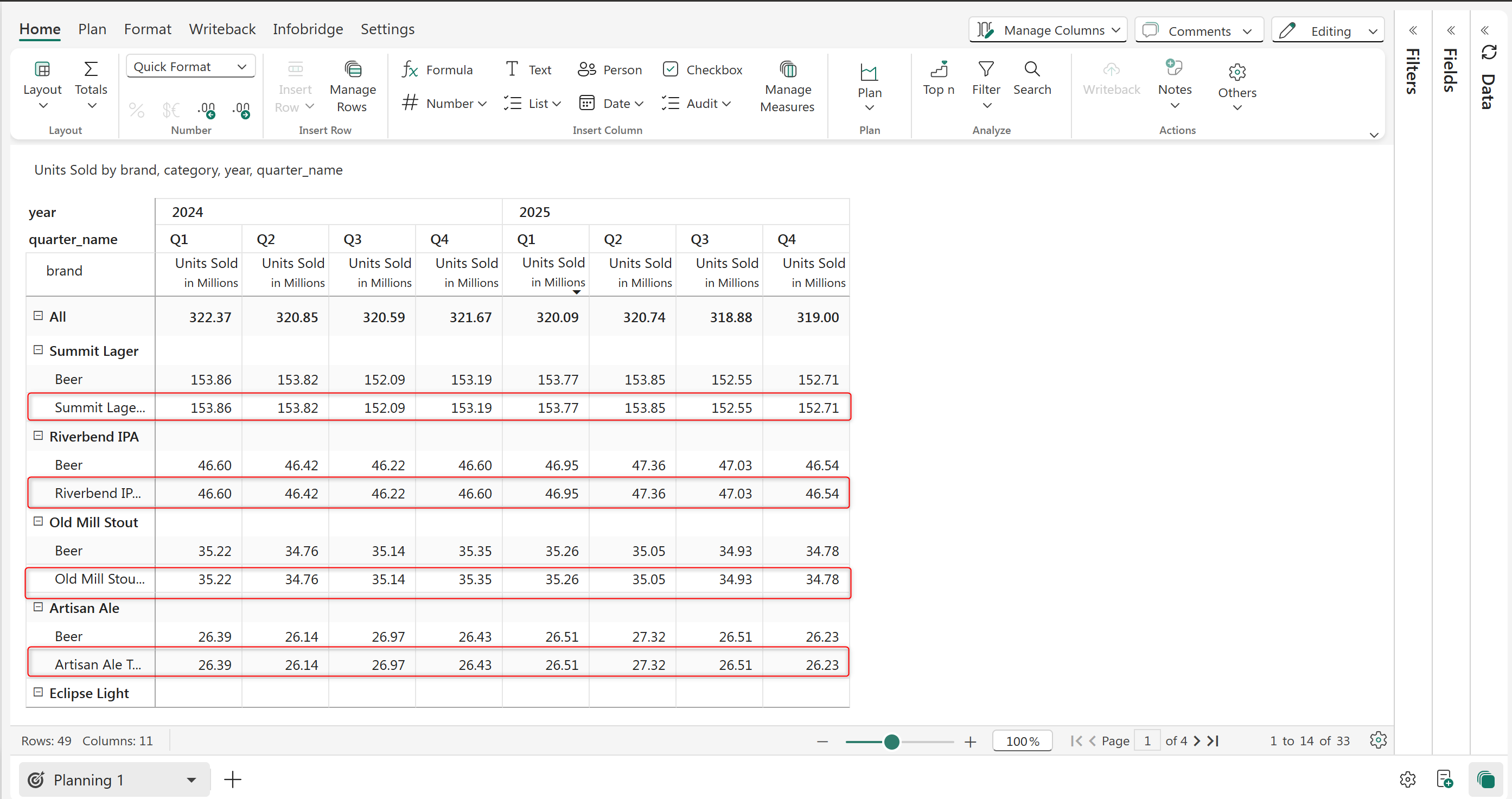
You select the split option to view the subtotal of each sub-section separately.
Row Subtotals are split
### 1.3 Column Grand Total and Subtotal
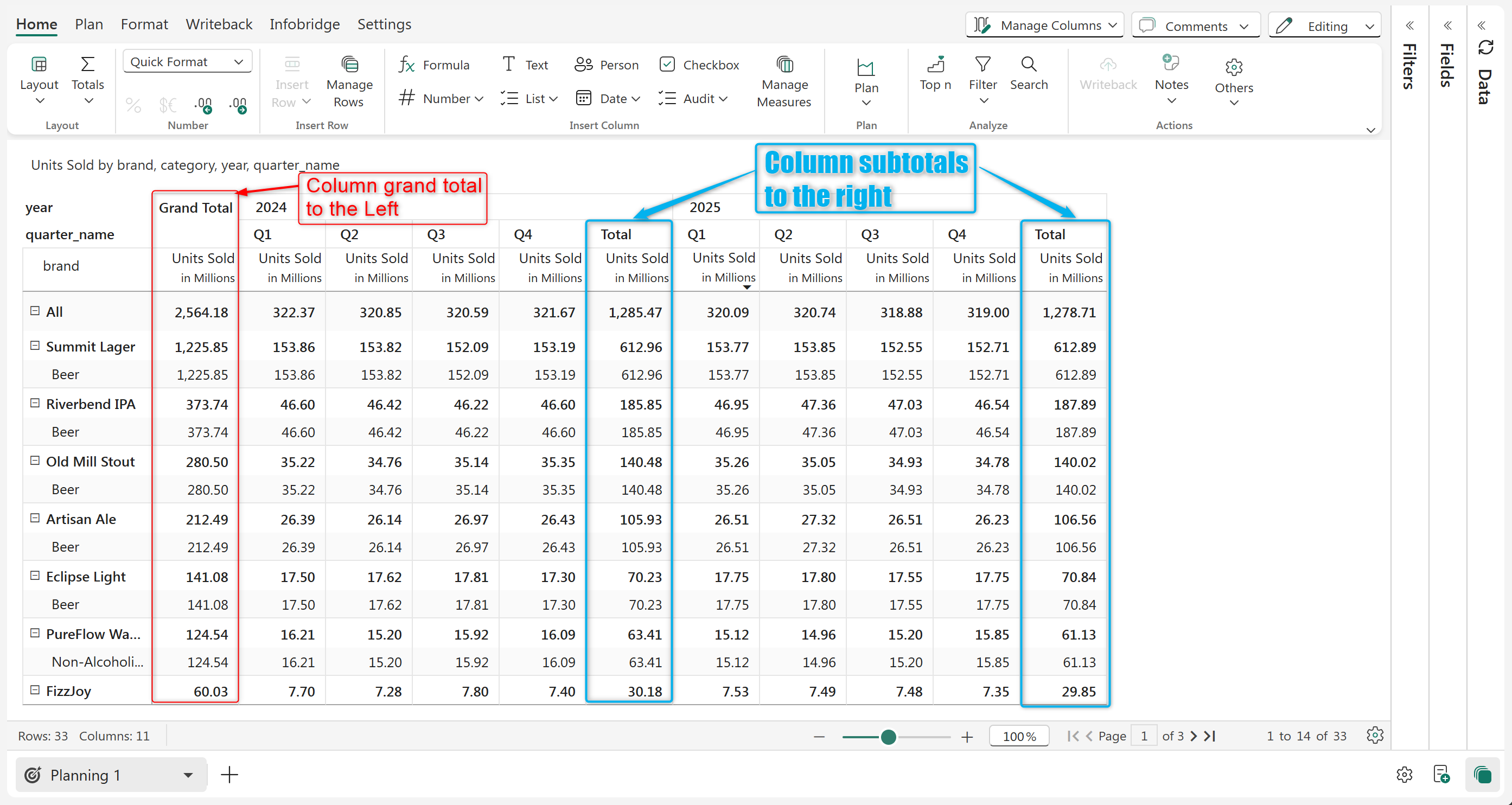
You can choose to display the column grand totals or the subtotals either at the right end of the columns or the left end by selecting the 'Left' or 'Right' option. You can even choose to hide it by selecting the 'Hide' option.
Column Total to the Left and Subtotal to the Right
## 2. Freeze
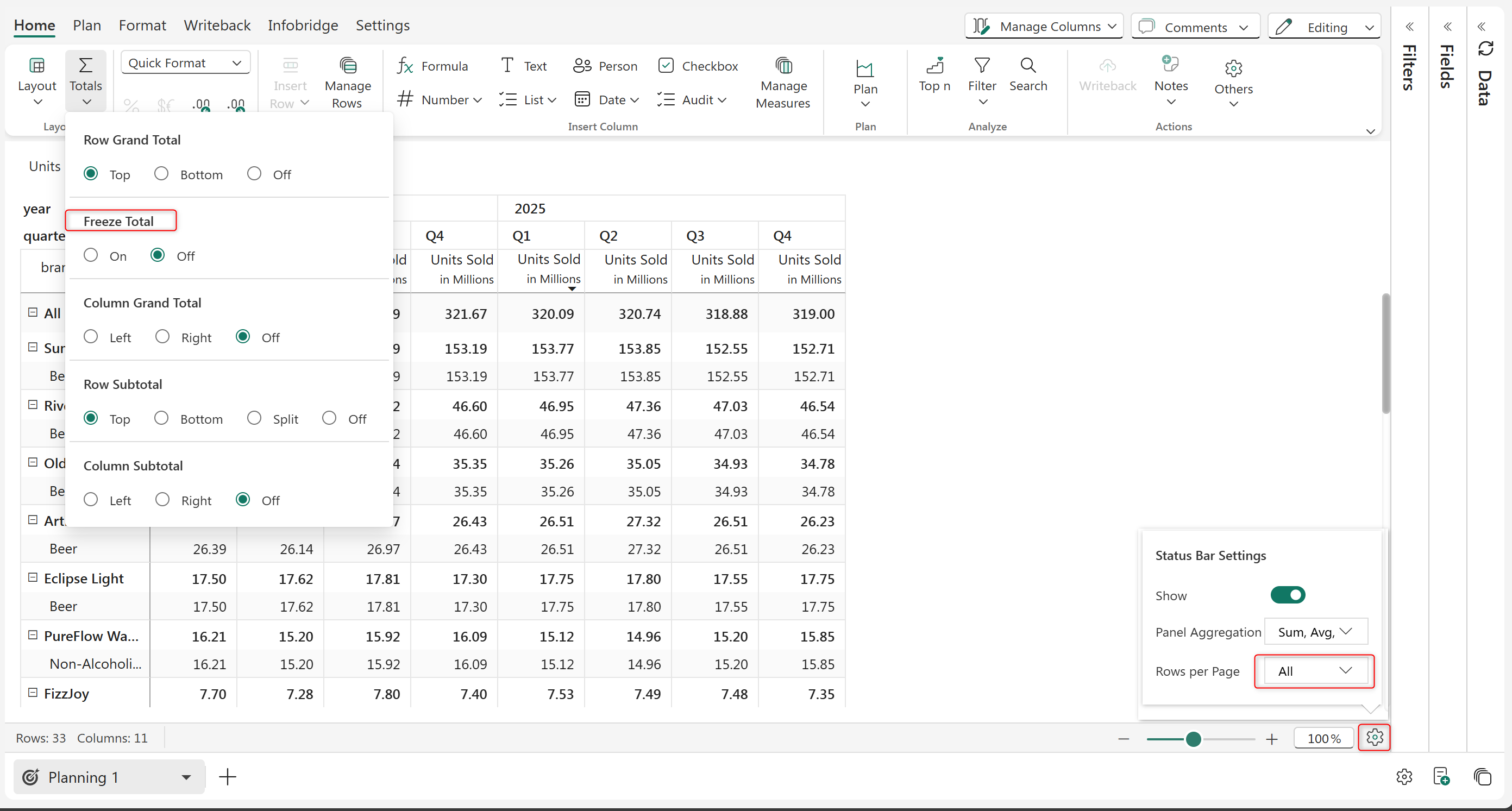
When **pagination is turned off**, you have the option to freeze totals.
To turn off pagination, click on the settings icon at the bottom and select Rows per page as 'All'.
{% hint style="info" %}
It is not possible to freeze totals when using the 'Drilldown' layout.
{% endhint %}
Enabling the Freeze option
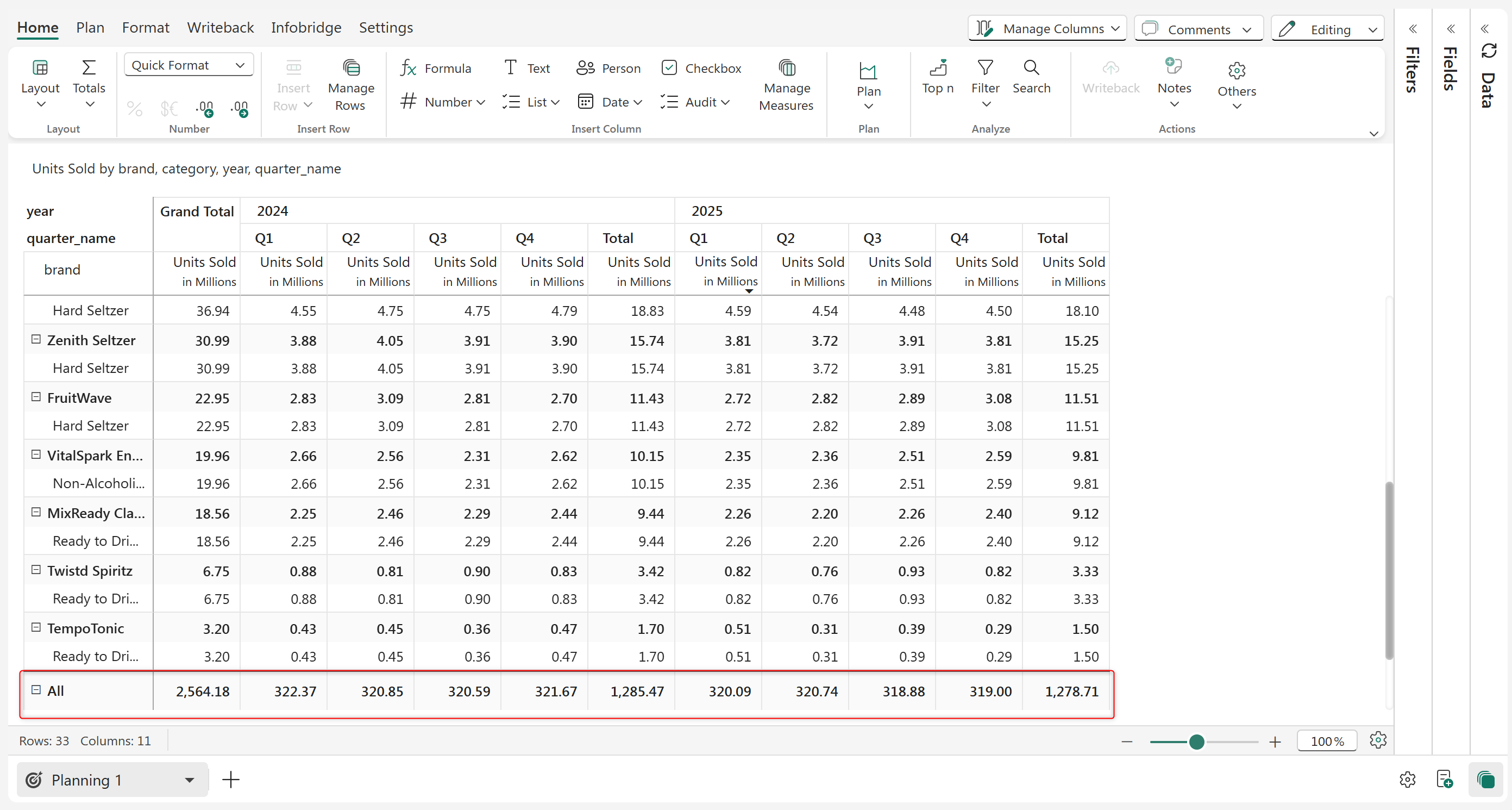
Freeze 'On' option enables you to freeze the Grand Total either at the 'Top' or 'Bottom' of the Row.
Freeze 'On' with Row Grand Total at the bottom.
Plan allows you to manage row & column subtotals & grand totals the way you want in an intuitive & flexible manner.
---
# Agent Instructions
This documentation is published with GitBook. GitBook is the documentation platform designed so that both humans and AI agents can read, navigate, and reason over technical content effectively. Learn more at gitbook.com.
## Querying This Documentation
If you need additional information that is not directly available in this page, you can query the documentation dynamically by asking a question.
Perform an HTTP GET request on the current page URL with the `ask` query parameter, and the optional `goal` query parameter:
```
GET https://docs.fabricplan.com/planning-sheets/how-tos/basic-formatting/total-and-subtotals.md?ask=&goal=
```
`ask` is the immediate question: it should be specific, self-contained, and written in natural language.
`goal` is optional and describes the broader end goal you are ultimately trying to accomplish on behalf of the user. GitBook uses it to tailor the answer towards what is most useful for that goal.
The response will contain a direct answer to the question and relevant excerpts and sources from the documentation.
Use this mechanism when the answer is not explicitly present in the current page, you need clarification or additional context, or you want to retrieve related documentation sections.