# Edit cells

Plan allows you to edit the contents of a cell and apply calculations. These are visual level updates and will not impact the source dataset.

### 1. Overwriting values

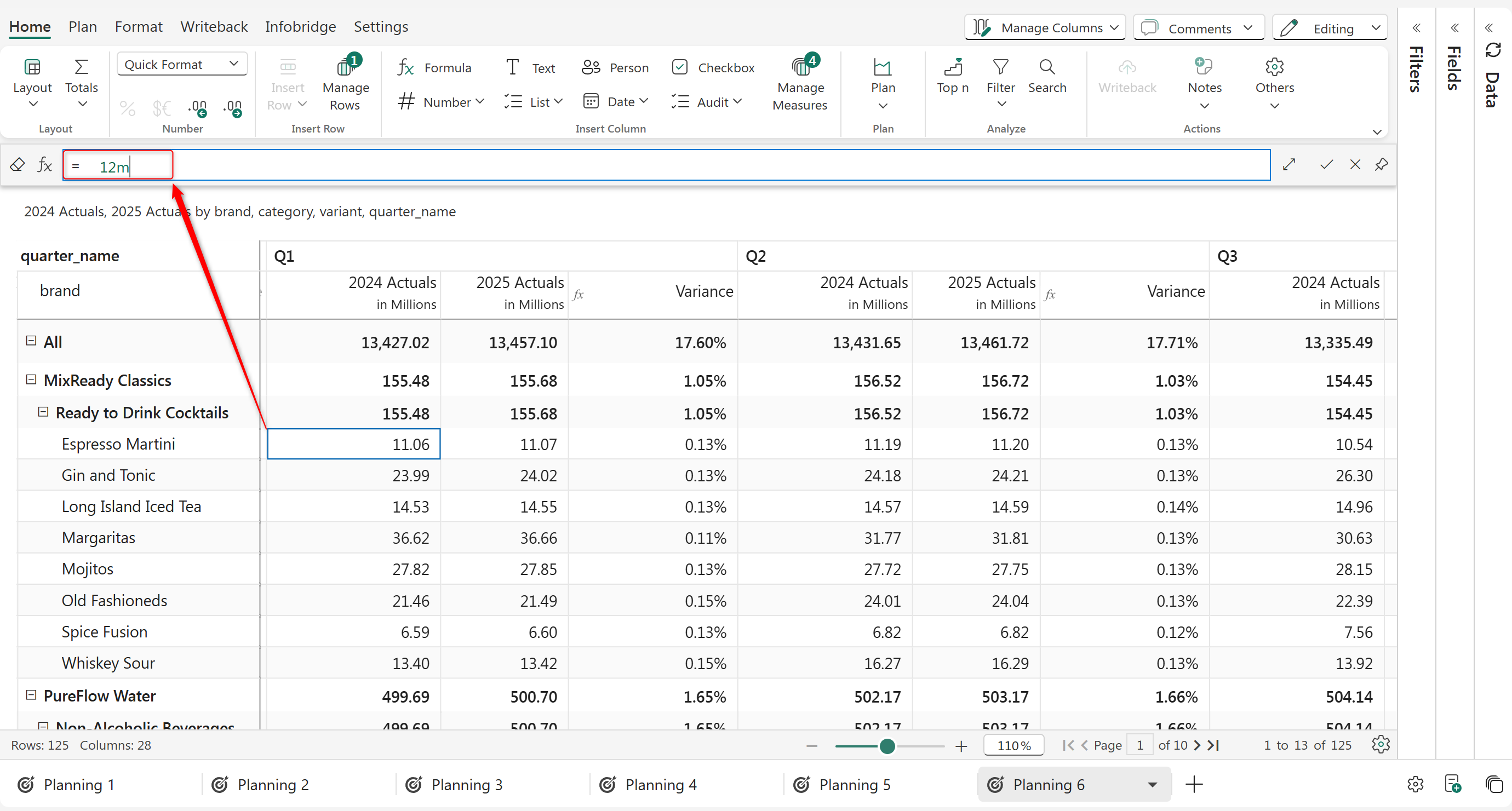
To overwrite an existing value, simply double-click on the cell and enter the new value. You can enter scaled values (250m, 5.6b, etc) or reference other cell values.

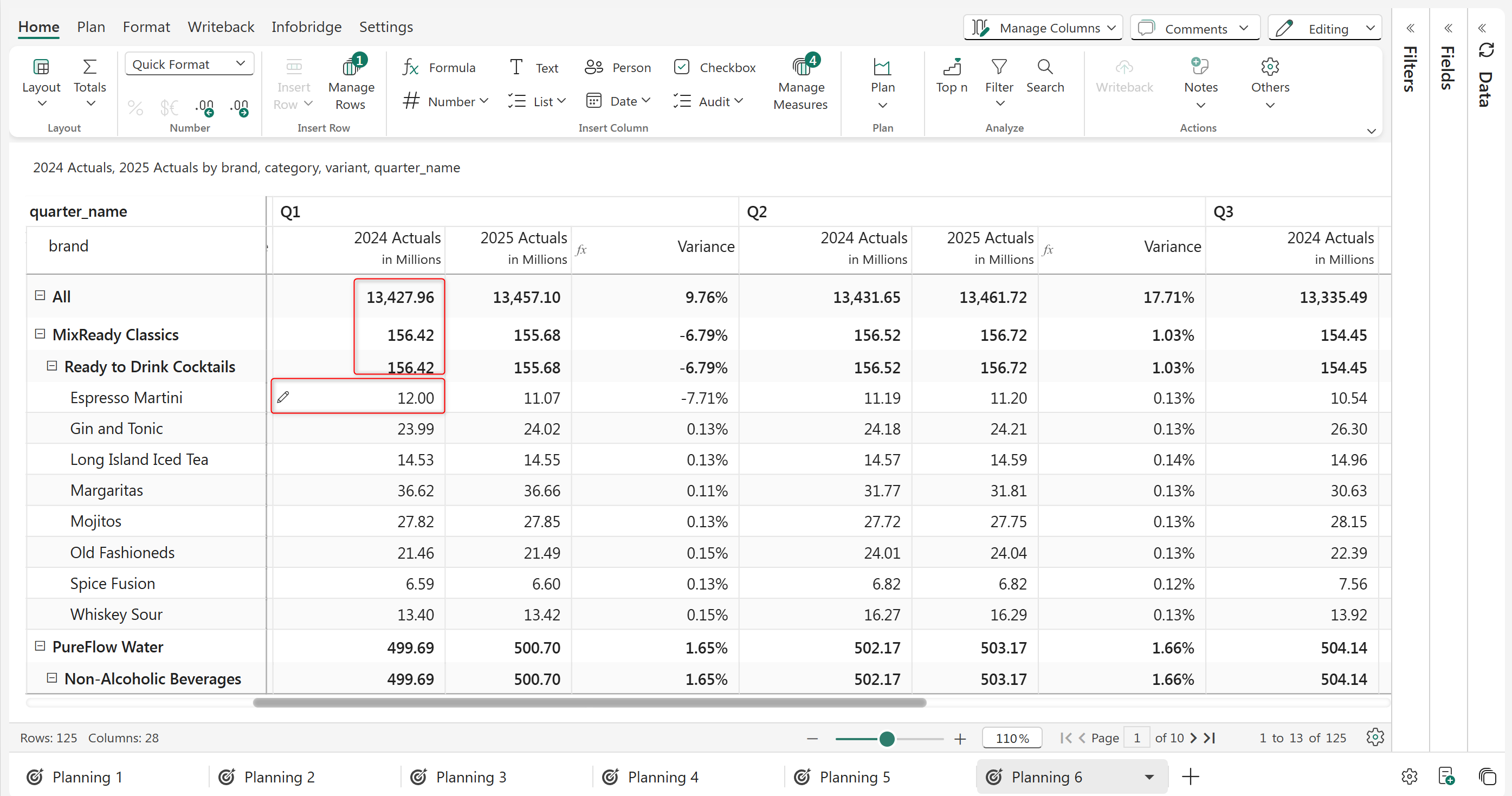
Double-click on a cell as shown in the image. A formula bar is enabled below the toolbar. Type in a value and click 'Enter'. Note that Plan allows entry of scaled values (e.g. 45.3m instead of 45,300,000).

<figure><img src="/files/dzMkWoF6ZFrXzp0duEjW" alt=""><figcaption></figcaption></figure>

<figure><img src="https://github.com/lumelinc/PowerTableDocs/blob/main/.gitbook/assets/image%20(565).png" alt=""><figcaption><p>Overwriting a value</p></figcaption></figure>

The value gets updated and the manual update can be identified by the pencil icon in the cell. The totals and subtotals are also updated to include the value entered.

<figure><img src="/files/YRHfbQRuTeKoFiGzj1KC" alt=""><figcaption></figcaption></figure>

<figure><img src="https://github.com/lumelinc/PowerTableDocs/blob/main/.gitbook/assets/image%20(566).png" alt=""><figcaption><p>Updated value</p></figcaption></figure>

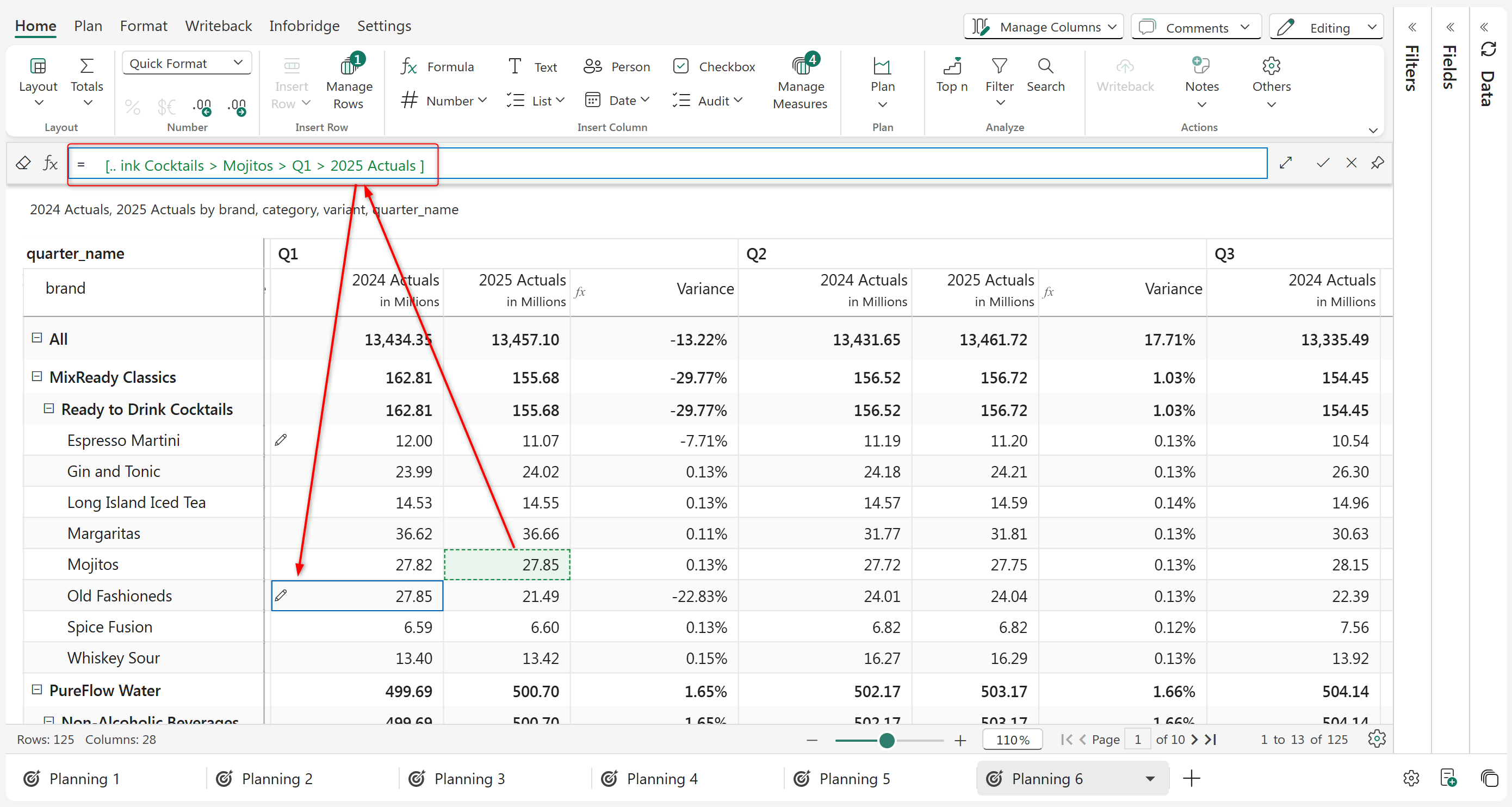
You can even reference other cells and apply formulas to them using the cell editor. You can define simple mathematical operations such as A +/- B, etc.

<figure><img src="/files/qAYyeaAzn4UfEZ0Cr0Mg" alt=""><figcaption></figcaption></figure>

<figure><img src="https://github.com/lumelinc/PowerTableDocs/blob/main/.gitbook/assets/image%20(564).png" alt=""><figcaption><p>Using cell references and applying formulas</p></figcaption></figure>

{% hint style="info" %}

* Plan allows you to edit values AC, PY, PL, FC, and OM measures. You can edit dates and text measures as well.
  {% endhint %}

### 2. Apply formulas

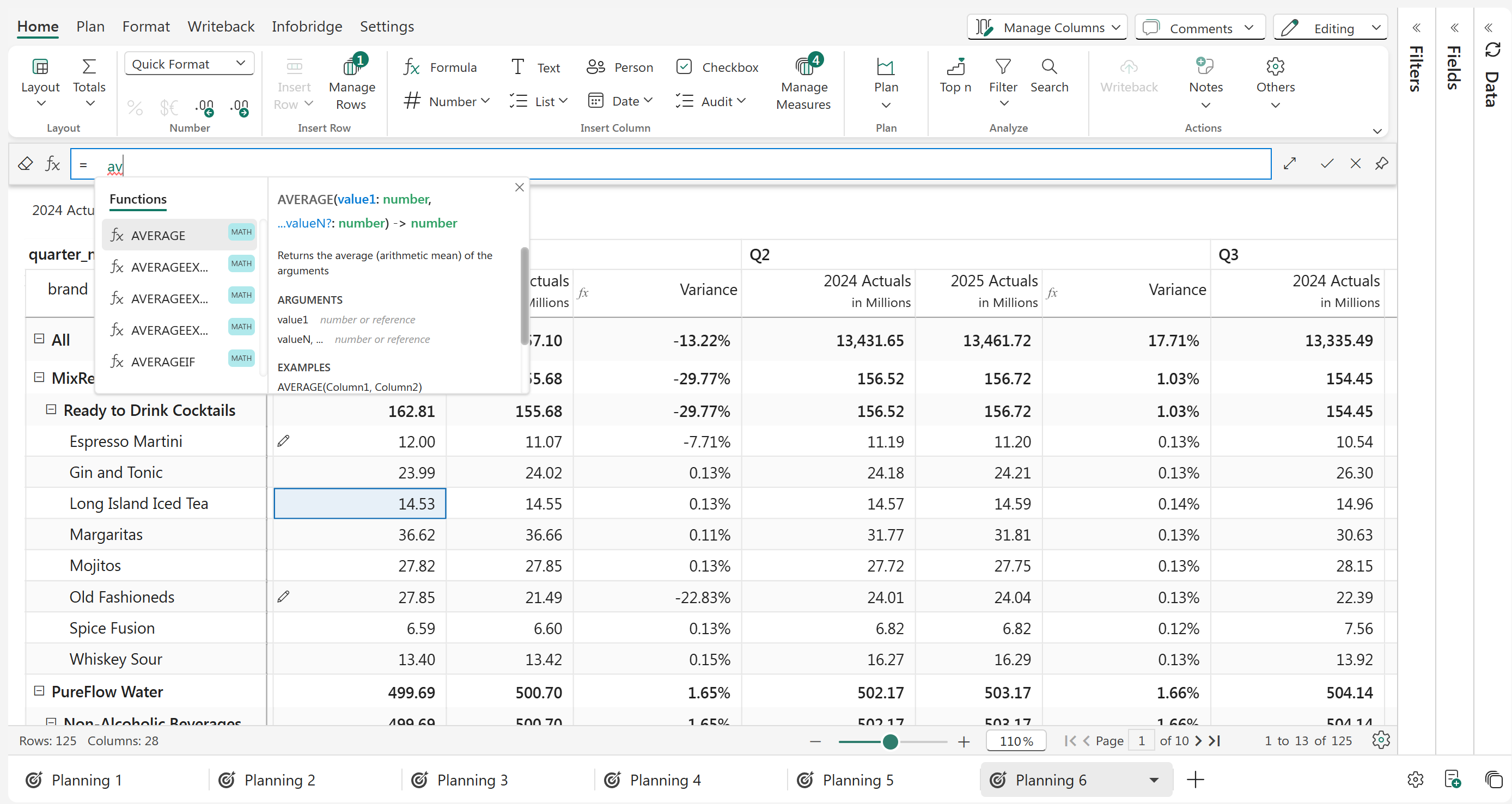
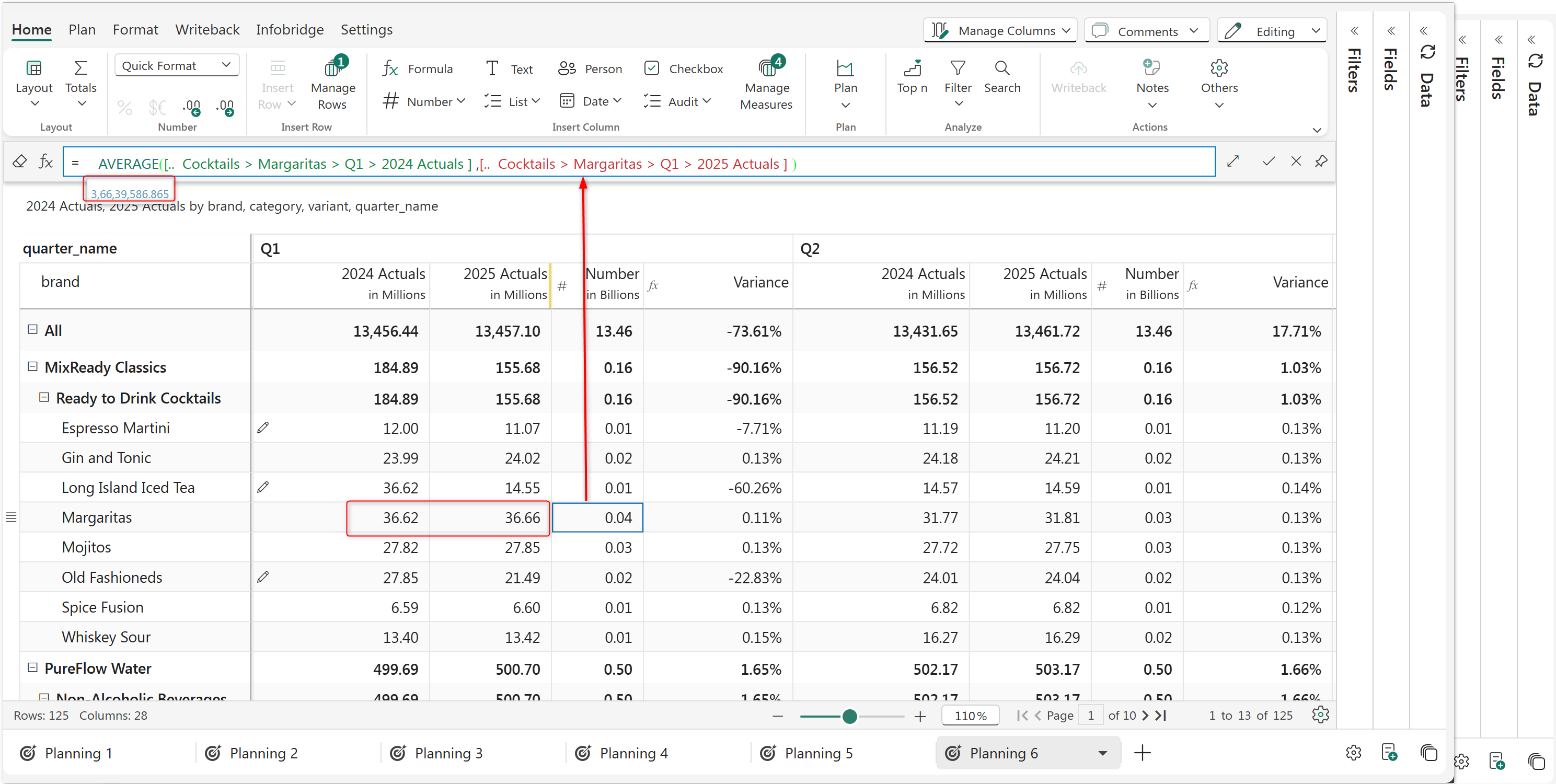
You can use the wide range of formulas and functions available in Plan while editing a cell. In the below example, we are using the 'Average' function. As you start typing, you can see a list of functions that match the entered text. Click on 'Average' to see more information, such as the arguments and examples.

<figure><img src="/files/9KudWgFb6K96cuy5hDKo" alt=""><figcaption></figcaption></figure>

<figure><img src="https://github.com/lumelinc/PowerTableDocs/blob/main/.gitbook/assets/4.3.9%20Static%20rows.png" alt=""><figcaption><p>Using formulas in static rows</p></figcaption></figure>

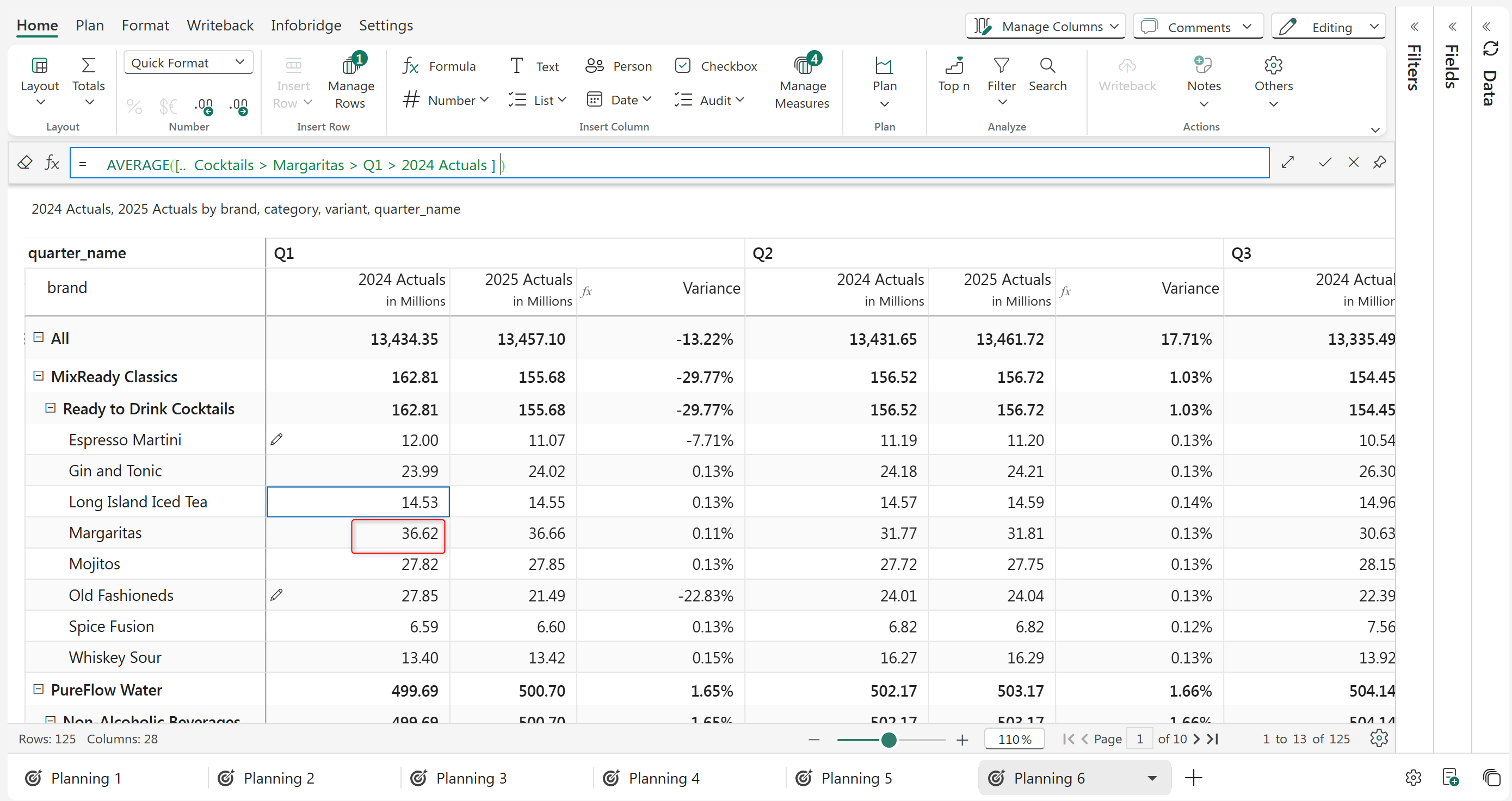
b) You can click on any cell, and it gets automatically populated within the formula as shown below.

<figure><img src="/files/WeMeQAjroUHVuEls4zJe" alt=""><figcaption></figcaption></figure>

<figure><img src="https://github.com/lumelinc/PowerTableDocs/blob/main/.gitbook/assets/4.3.11%20Static%20rows.png" alt=""><figcaption><p>Selecting a cell</p></figcaption></figure>

c) Let's calculate the average of the two selected cells.

<figure><img src="/files/D44R9Yru6RLewJTK7vuq" alt=""><figcaption></figcaption></figure>

<figure><img src="https://github.com/lumelinc/PowerTableDocs/blob/main/.gitbook/assets/4.3.12%20Static%20rows.png" alt=""><figcaption><p>Average of two selected cell</p></figcaption></figure>

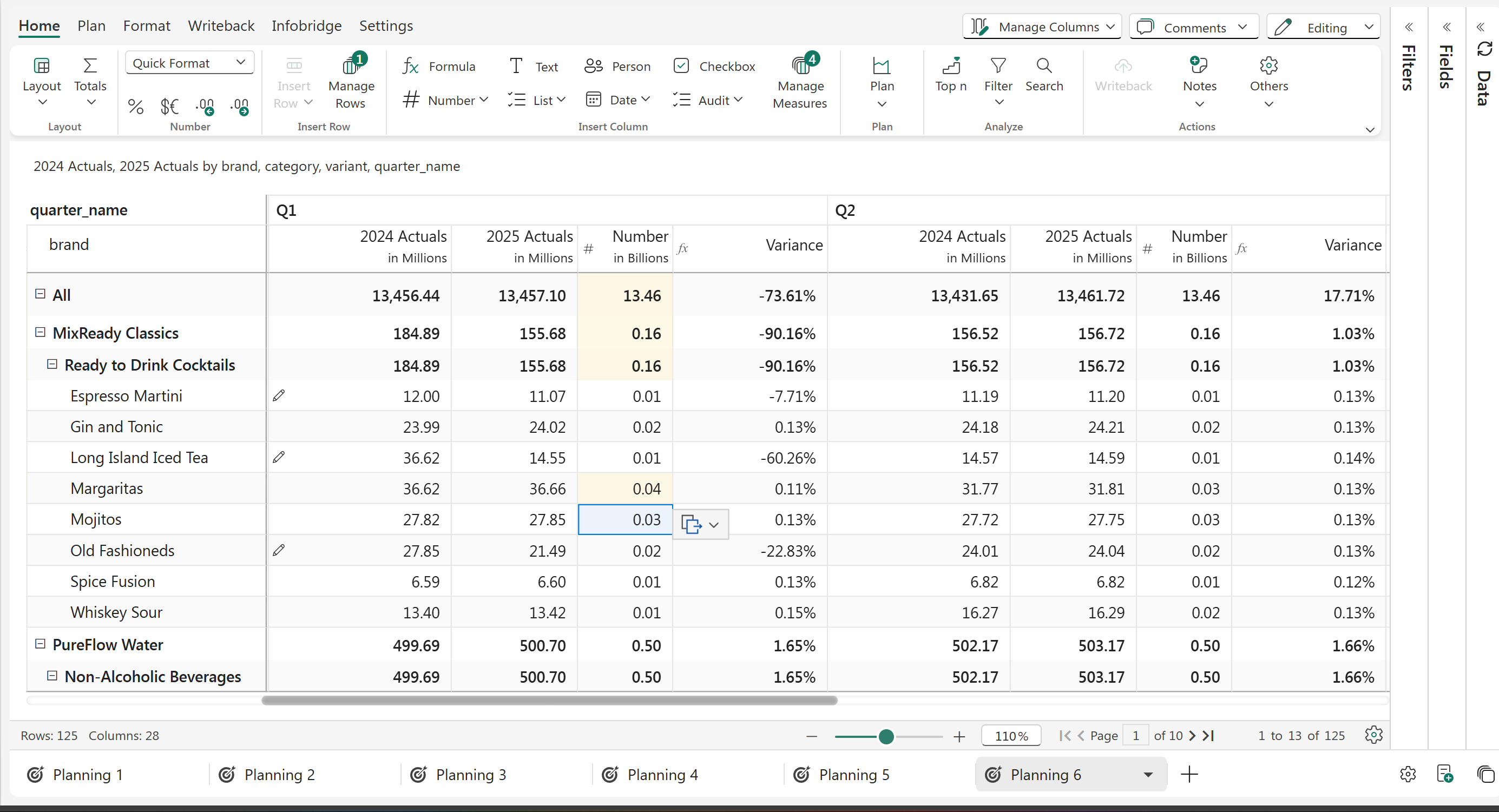
d) You can see the result of the operation, which gets updated in the totals and subtotals

<figure><img src="/files/oAD9hmduPaDdXaYlNpXz" alt=""><figcaption></figcaption></figure>

<figure><img src="https://github.com/lumelinc/PowerTableDocs/blob/main/.gitbook/assets/4.3.13%20Static%20rows.png" alt=""><figcaption><p>Data captured</p></figcaption></figure>

### 3. Updating multiple cells

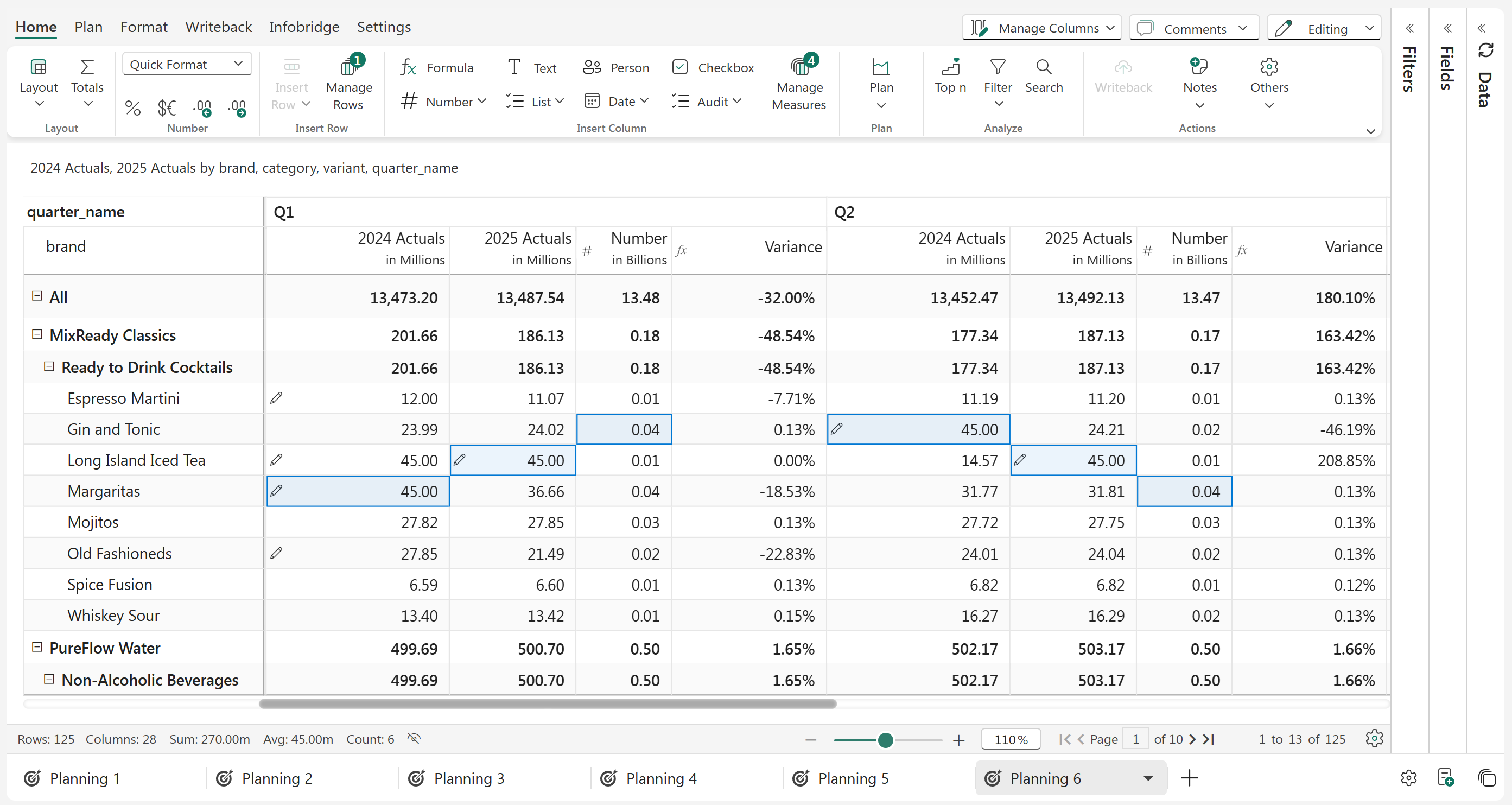
You can also override the data in multiple cells with the same value, for instance, set a fixed budget. Select the cells and update the value in any cell, the updated value will get cascaded to all the selected cells.

<figure><img src="/files/rKFTgNYawpb7jY6clorf" alt=""><figcaption><p>Updating multiple cells simultaneously</p></figcaption></figure>

<figure><img src="https://github.com/lumelinc/PowerTableDocs/blob/main/.gitbook/assets/image%20(602).png" alt=""><figcaption></figcaption></figure>

### 4. Renaming Row Categories

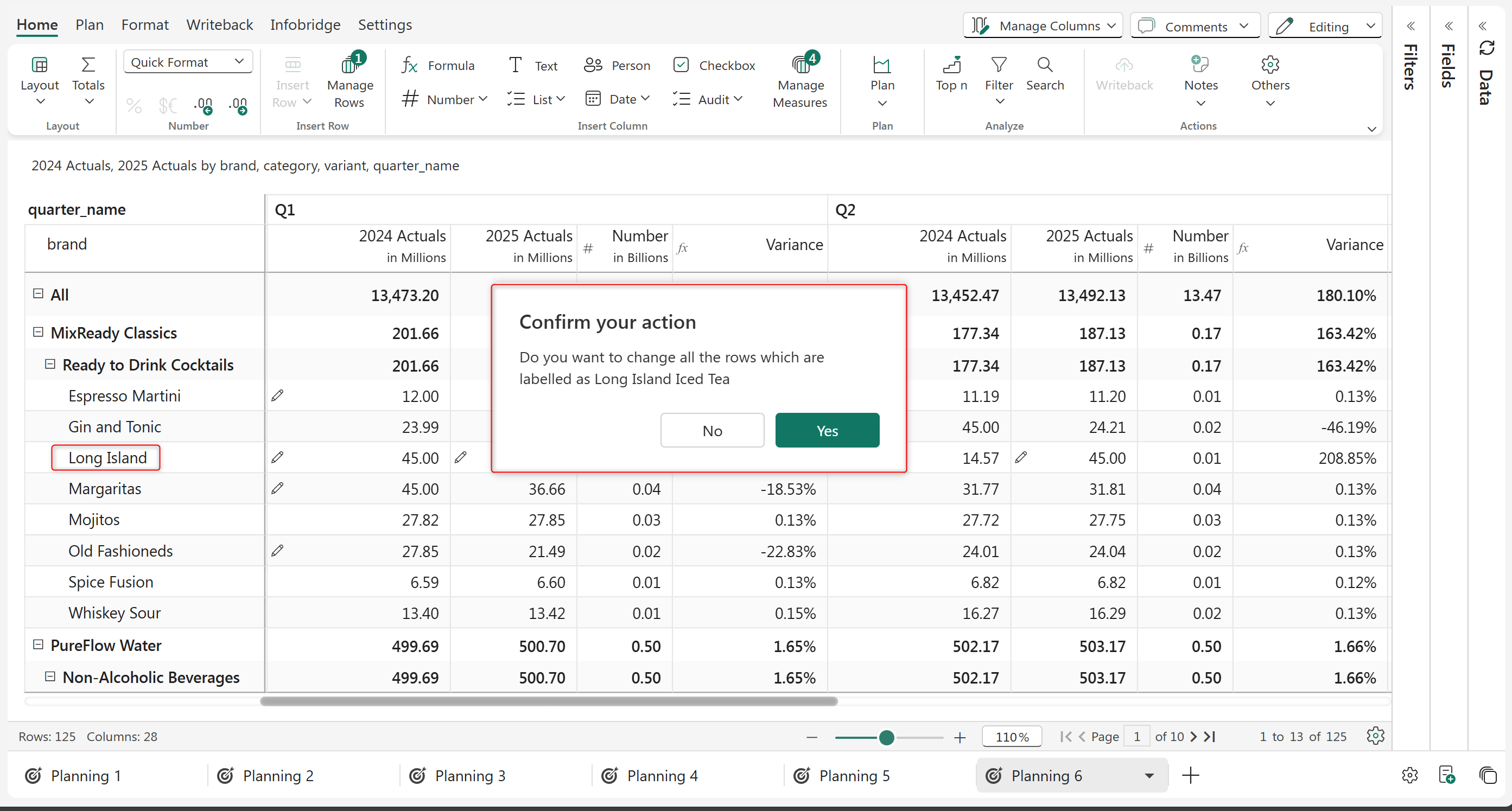
You can also rename row categories by double-clicking on them.

The same row category may be repeated at each hierarchy level for hierarchical datasets. When you try to rename such categories at one level, Plan displays a prompt to confirm whether the category should be renamed across all levels or only at that level.

<div align="center"><figure><img src="/files/lpA55SHk8m4D6qM19JyV" alt="" width="563"><figcaption><p>Renaming Row Categories</p></figcaption></figure></div>

### 5. Bulk edit

In financial reporting, costs or revenues may need to be allocated across multiple fields, or during the budgeting/forecasting process, the same values may need to be distributed across different fields. In some cases, you may need to set the same date, such as the expiry date for a list of products, or assign the same manager to a group of locations.

Let's look at the **Bulk Edit** feature that comes in handy in such situations. We will use an example where we need to bulk edit a data input-number column.

Navigate to the Plan tab and click the Bulk Edit option from the Tools section.

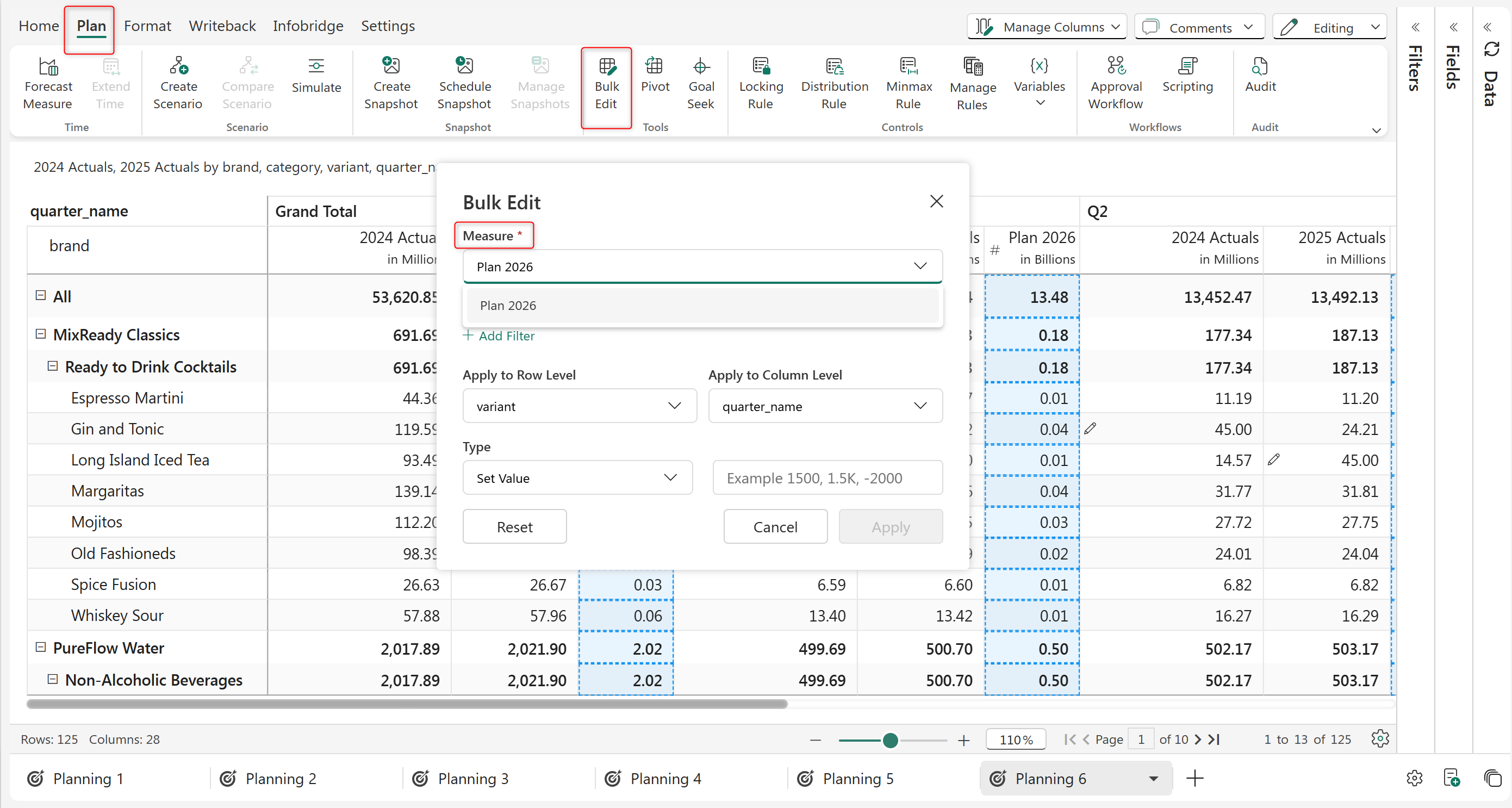
**STEP 1:** From the **Measure** dropdow&#x6E;**,** select the data input measure for which you want to perform a bulk update.

<figure><img src="/files/HPBfwLFw62aMmpJriAli" alt=""><figcaption></figcaption></figure>

<figure><img src="https://github.com/lumelinc/PowerTableDocs/blob/main/.gitbook/assets/image%20(1811).png" alt=""><figcaption><p>Select measure in Bulk Edit pop-up</p></figcaption></figure>

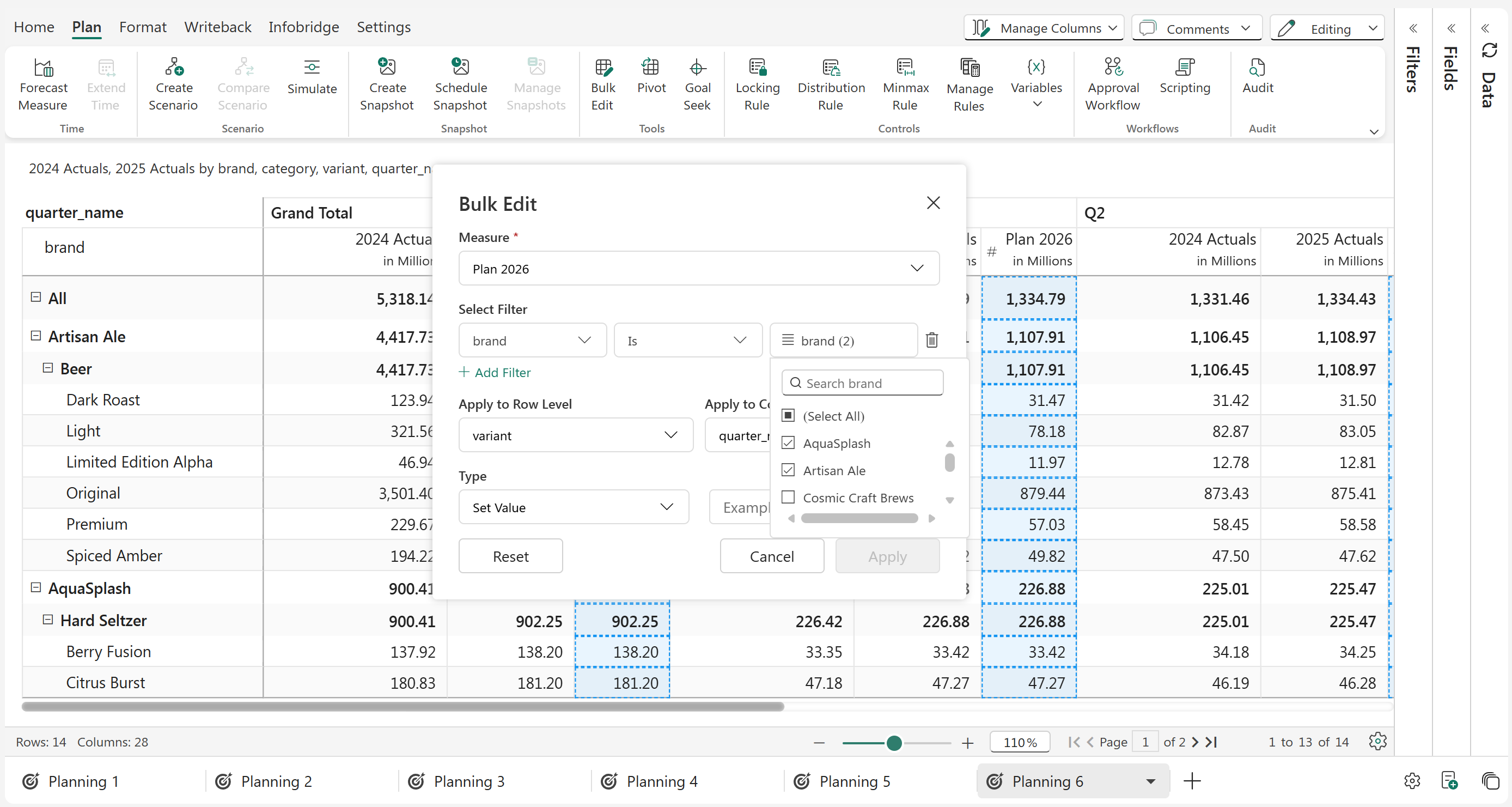
**STEP 2:** You can use the Select filter to choose the dimension categories for which you need to update values. You can select multiple categories for each dimension, as well as add more dimensions by adding filter. As you make selections, you'll notice the report getting filtered dynamically.

<figure><img src="/files/oUMTClFFLn2BmMM2NE8u" alt=""><figcaption></figcaption></figure>

<figure><img src="https://github.com/lumelinc/PowerTableDocs/blob/main/.gitbook/assets/Untitled%20Project%20(12).gif" alt=""><figcaption><p>Choosing dimensions by adding Filters</p></figcaption></figure>

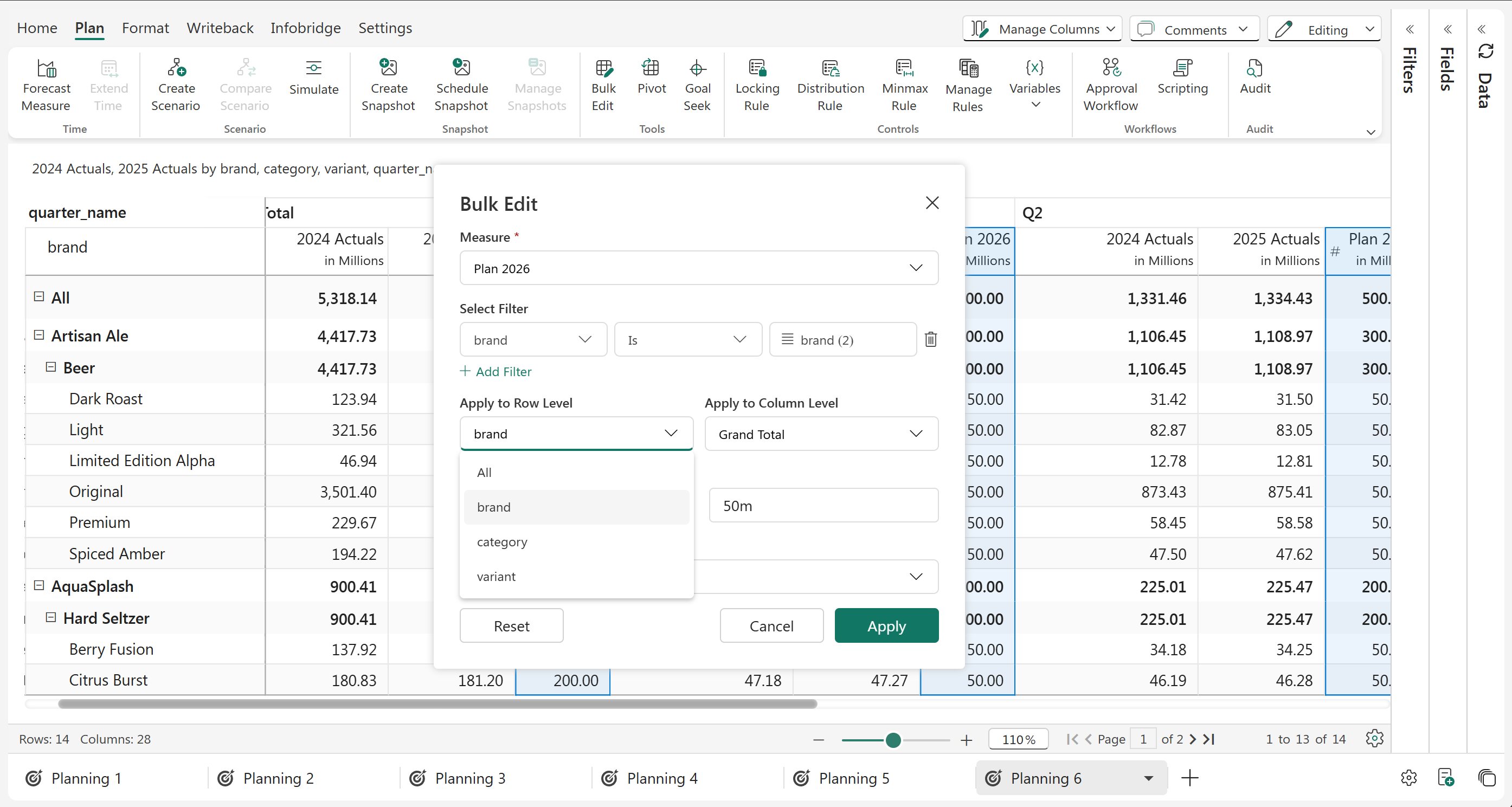
**STEP 3:** Select the row hierarchy level at which the value should be updated.

<figure><img src="/files/bN1f2BPFbo4OSF4qqf9q" alt=""><figcaption></figcaption></figure>

<figure><img src="https://github.com/lumelinc/PowerTableDocs/blob/main/.gitbook/assets/image%20(1816).png" alt=""><figcaption><p>Selecting the row hierarchy category</p></figcaption></figure>

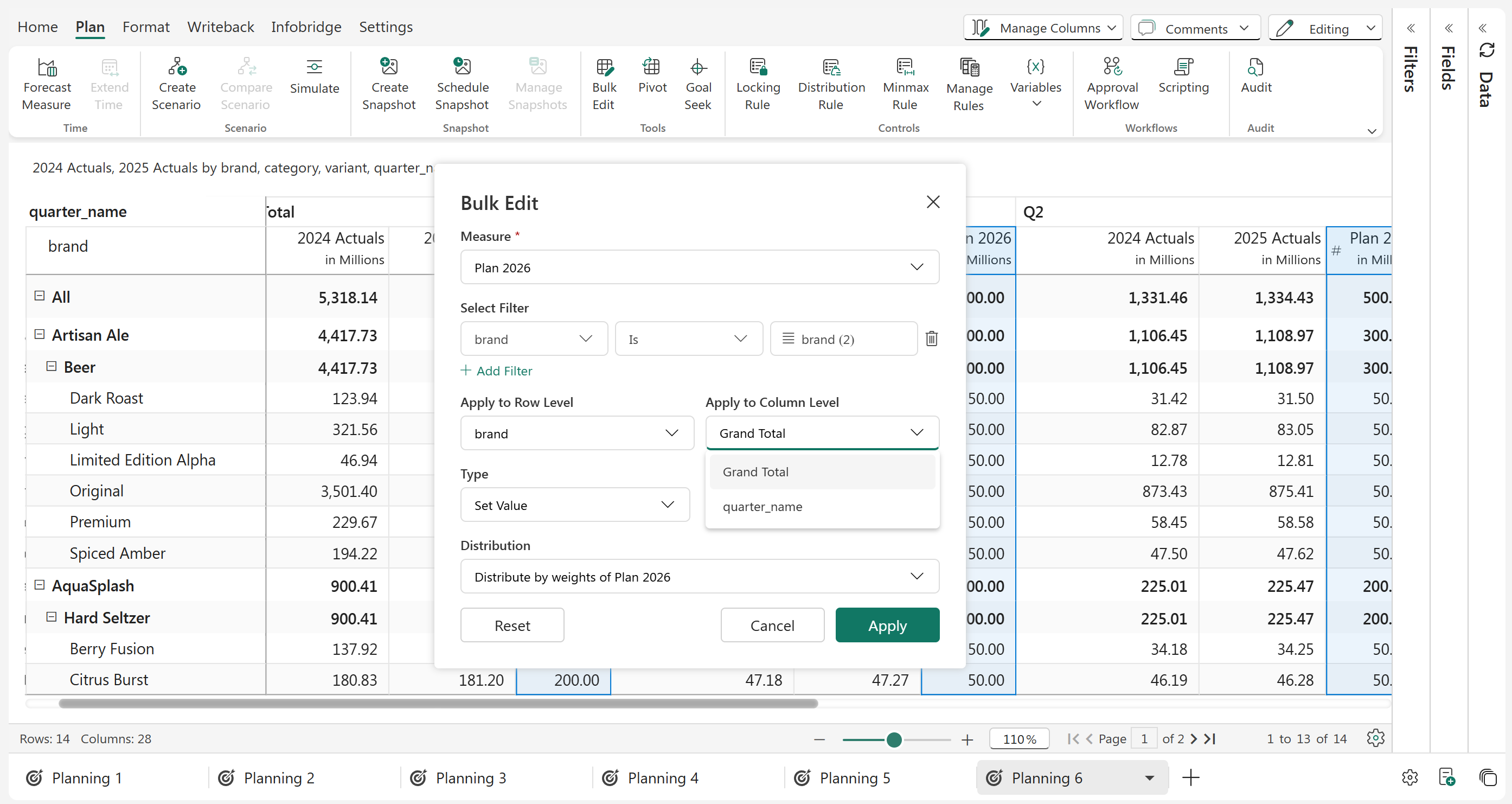
**STEP 4:** Similarl&#x79;**,** select the column hierarchy level at which the value should be updated. In this case, since we do not have a column-level hierarchy, we can either update at Grand Total level or Quarter level.

<figure><img src="/files/nEMPy84gWkdWZS8OzI0V" alt=""><figcaption></figcaption></figure>

<figure><img src="https://github.com/lumelinc/PowerTableDocs/blob/main/.gitbook/assets/image%20(1817).png" alt=""><figcaption><p>Selecting the column hierarchy category</p></figcaption></figure>

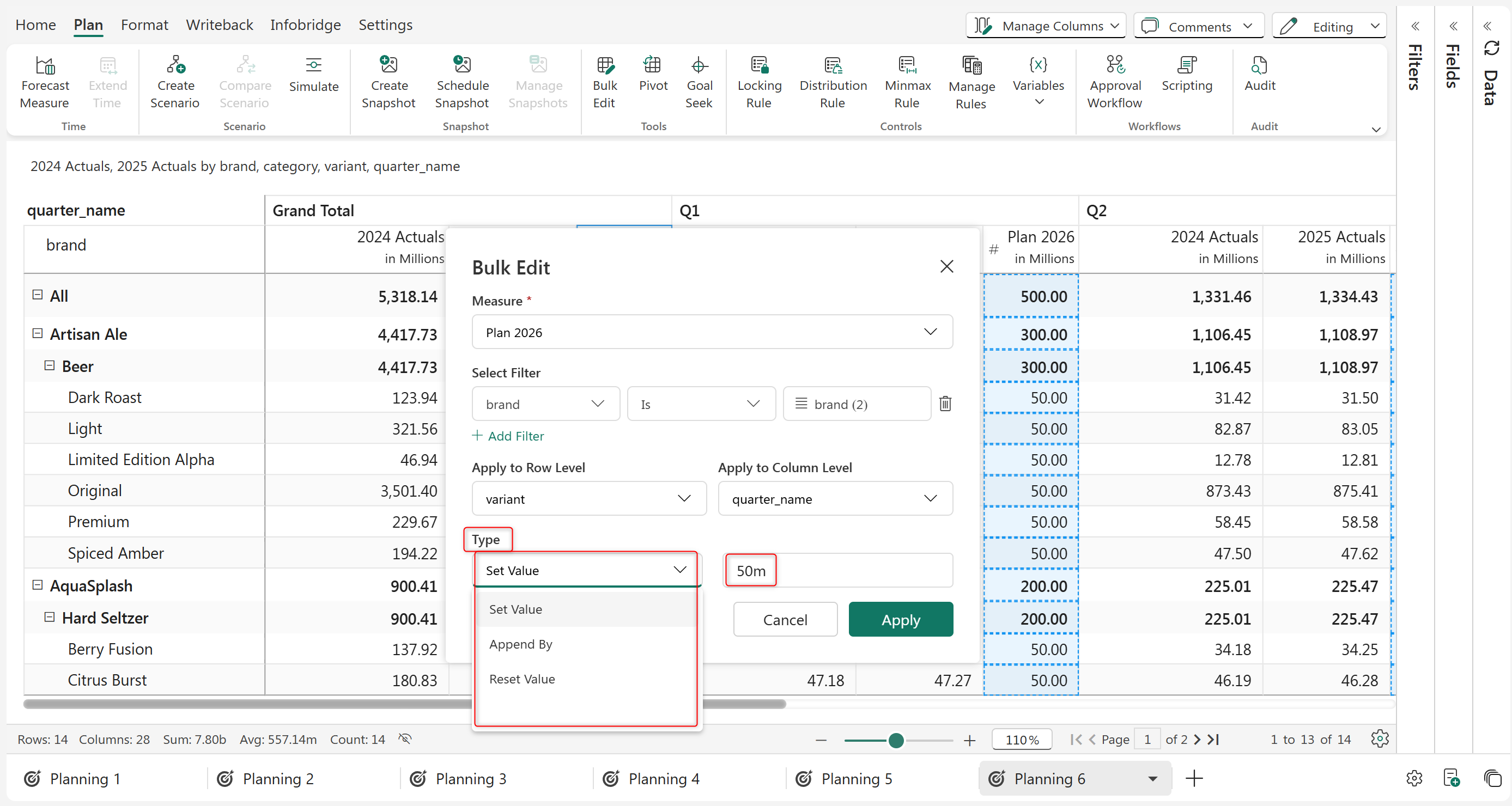
**STEP 5:** Choose the type of update to perform and enter the value. If you choose **Append**, the value will be added to the existing value. If you choose **Set Value,** the set value will replace the existing value. To remove the existing value, choose **Reset Value.**

<figure><img src="/files/wv6JFO8iionOmLlJSQZY" alt=""><figcaption></figcaption></figure>

<figure><img src="https://github.com/lumelinc/PowerTableDocs/blob/main/.gitbook/assets/image%20(1818).png" alt=""><figcaption><p>Type of update</p></figcaption></figure>

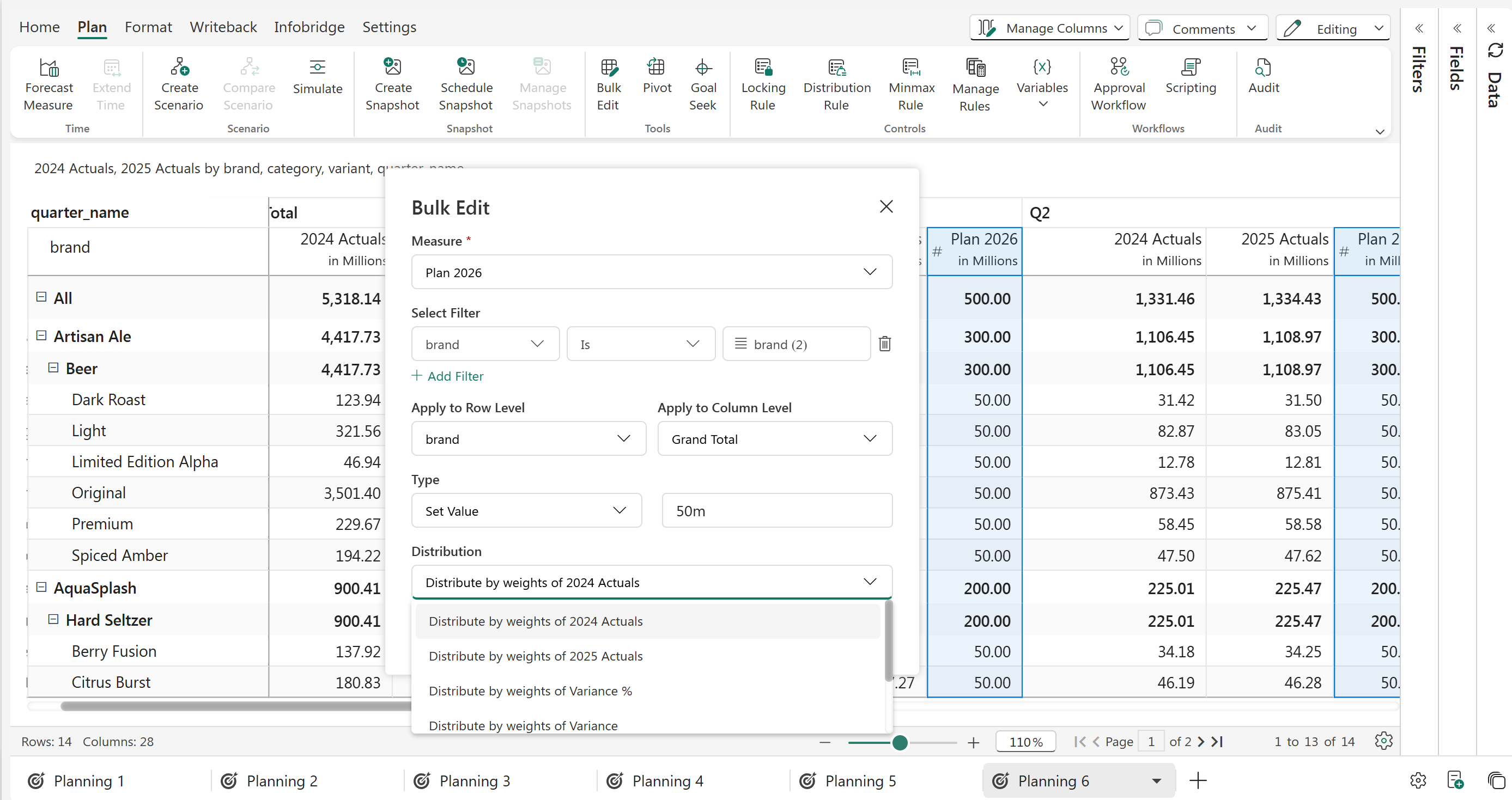
**STEP 6:** You can choose to distribute the updated value to child rows based on the weights of another measure or distribute equally.

<figure><img src="/files/hZI8me8OOx6BwiTrSnTh" alt=""><figcaption></figcaption></figure>

<figure><img src="https://github.com/lumelinc/PowerTableDocs/blob/main/.gitbook/assets/image%20(1819).png" alt=""><figcaption><p>Distribute values</p></figcaption></figure>

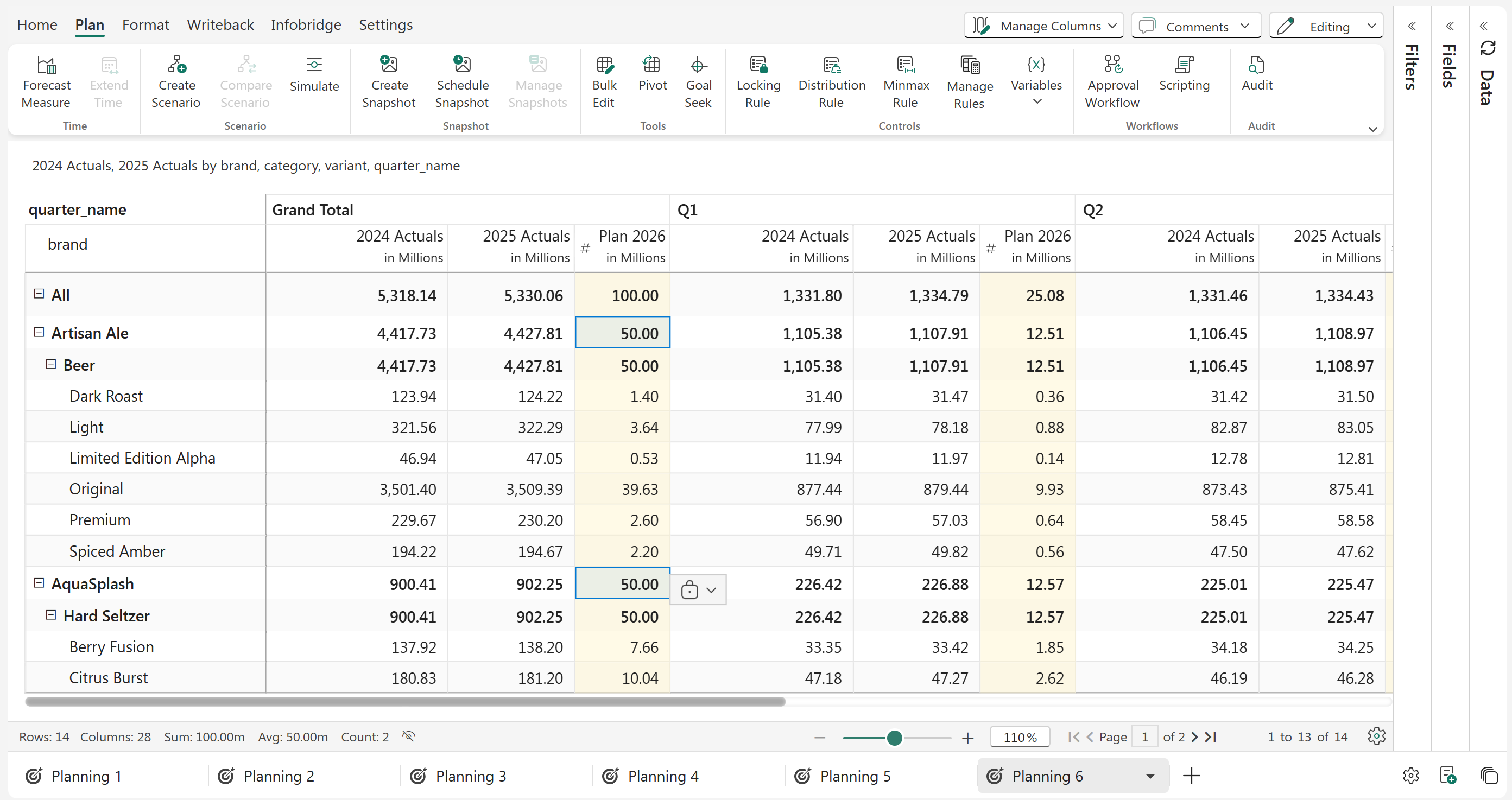
The cells are updated to 50m at the Segment level and distributed to the children based on the weights of the 2024 Actuals.

<figure><img src="/files/4IDNnFBfQW91EbyBdnu4" alt=""><figcaption></figcaption></figure>

<figure><img src="https://github.com/lumelinc/PowerTableDocs/blob/main/.gitbook/assets/image%20(1820).png" alt=""><figcaption><p>Bulk-edited cells are highlighted in yellow.</p></figcaption></figure>

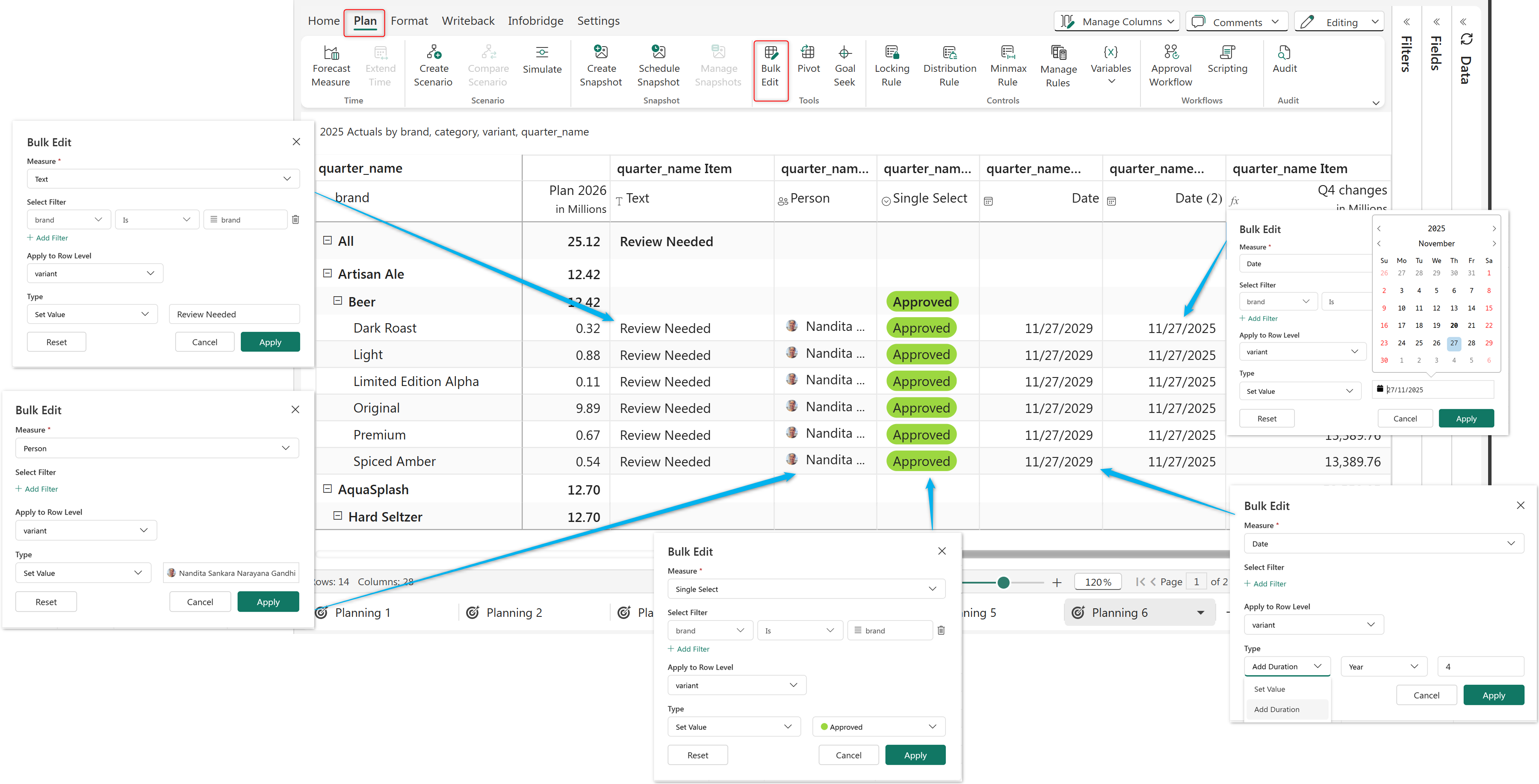
Similarly, we can bulk edit all other data input types, including text, date, person, single-select, and multi-select dropdowns. Specifically for date fields, you can either set a date from the date picker or add a duration in years, quarters, months, weeks, or days to the existing date.

<figure><img src="/files/n61S2jsUh4ZEPTyKYZ2b" alt=""><figcaption><p>Bulk Edit option for various Data input types is shown</p></figcaption></figure>

{% hint style="info" %}
When editing data in bulk:

1. If you are working with numerical data inputs, you can append and distribute values.
2. For date input type, you can specify the duration or choose a date.
3. When column headers have a hierarchy, like a region or date hierarchy, you can collectively apply changes to specific column levels.
   {% endhint %}

{% hint style="info" %}
Bulk editing is available for simulation measures and scenarios so that simulations can be applied to specific categories and dimensions in one go. Refer these sections to learn more: [Bulk editing a simulation measure](https://github.com/lumelinc/FabricPlanningDocs/blob/Dev/broken/pages/8hJdseABWtYfzORazz2Z/README.md#id-3.-bulk-editing-a-simulation-measure) and [Bulk editing a scenario](broken://pages/jUciLkXkARAxZhPl1Tqm#iv-bulk-editing-a-scenario).
{% endhint %}


---

# Agent Instructions: Querying This Documentation

If you need additional information that is not directly available in this page, you can query the documentation dynamically by asking a question.

Perform an HTTP GET request on the current page URL with the `ask` query parameter:

```
GET https://docs.fabricplan.com/planning-sheets/how-tos/adding-business-logic-and-formulae/editing-cells.md?ask=<question>
```

The question should be specific, self-contained, and written in natural language.
The response will contain a direct answer to the question and relevant excerpts and sources from the documentation.

Use this mechanism when the answer is not explicitly present in the current page, you need clarification or additional context, or you want to retrieve related documentation sections.