> For the complete documentation index, see [llms.txt](https://docs.fabricplan.com/llms.txt). Markdown versions of documentation pages are available by appending `.md` to page URLs; this page is available as [Markdown](https://docs.fabricplan.com/intelligence-sheets/how-tos/build-financial-reports.md).
# Build financial reports
Intelligence sheets include built-in features that make it easy to present financial data in a clear format. You can organize metrics into a structured layout that supports both on-screen analysis and formatted exports.
Apply custom number formatting and scaling, use single-click templates, display totals and subtotals, and insert calculations. Together, these capabilities help you create presentation-ready financial reports that support planning, analysis, and decision-making.
This article provides a basic overview of how to create financial reports by using intelligence sheets.
### Apply and customize built-in templates
Built-in report templates provide a quick starting point for creating reports. They reduce the time and effort required to build reports from scratch.
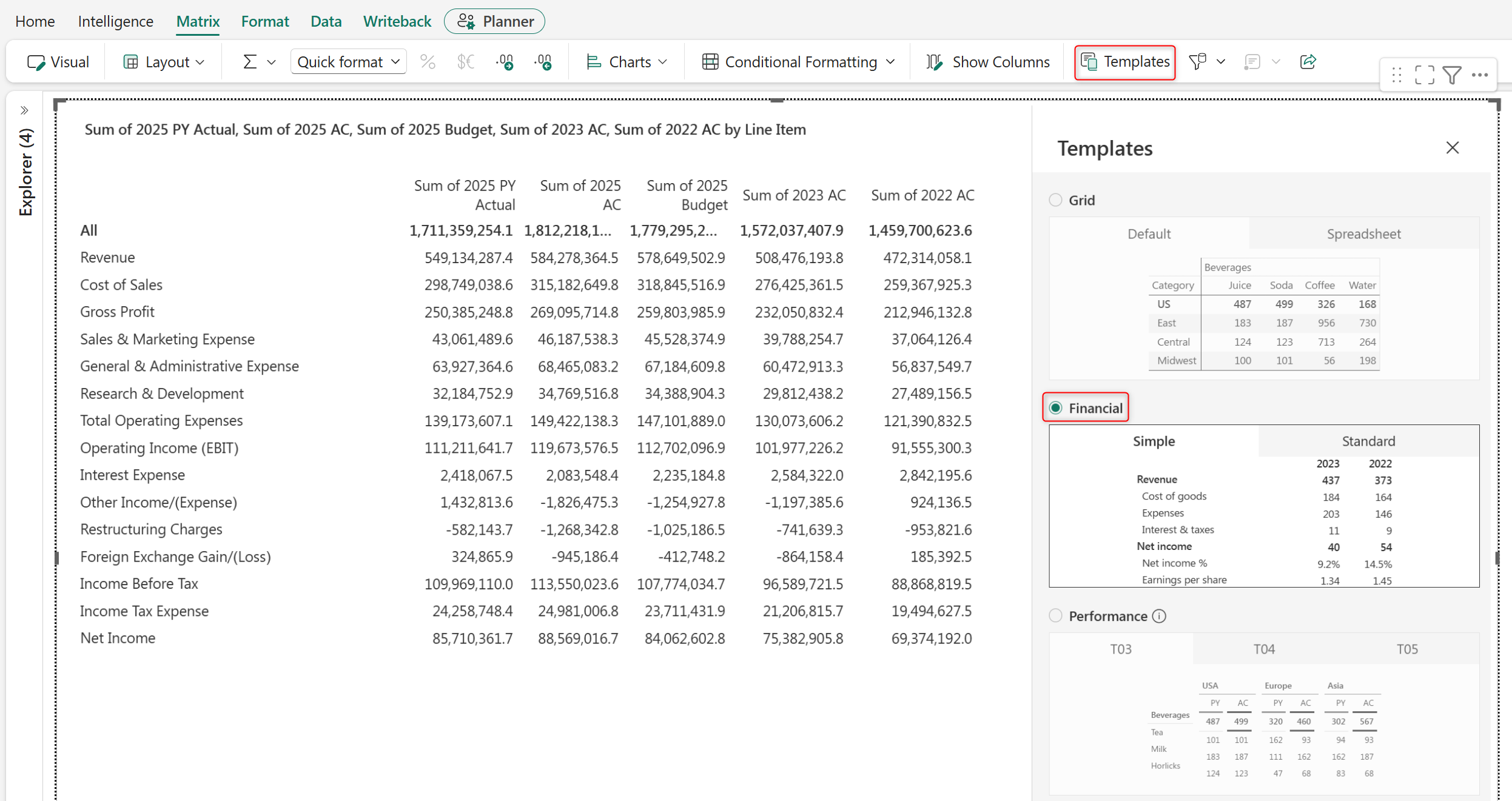
1. In the **Matrix** ribbon, go to **Templates** > **Financial**. Select the **Simple** template to create a financial statement with predefined layouts and formatting.
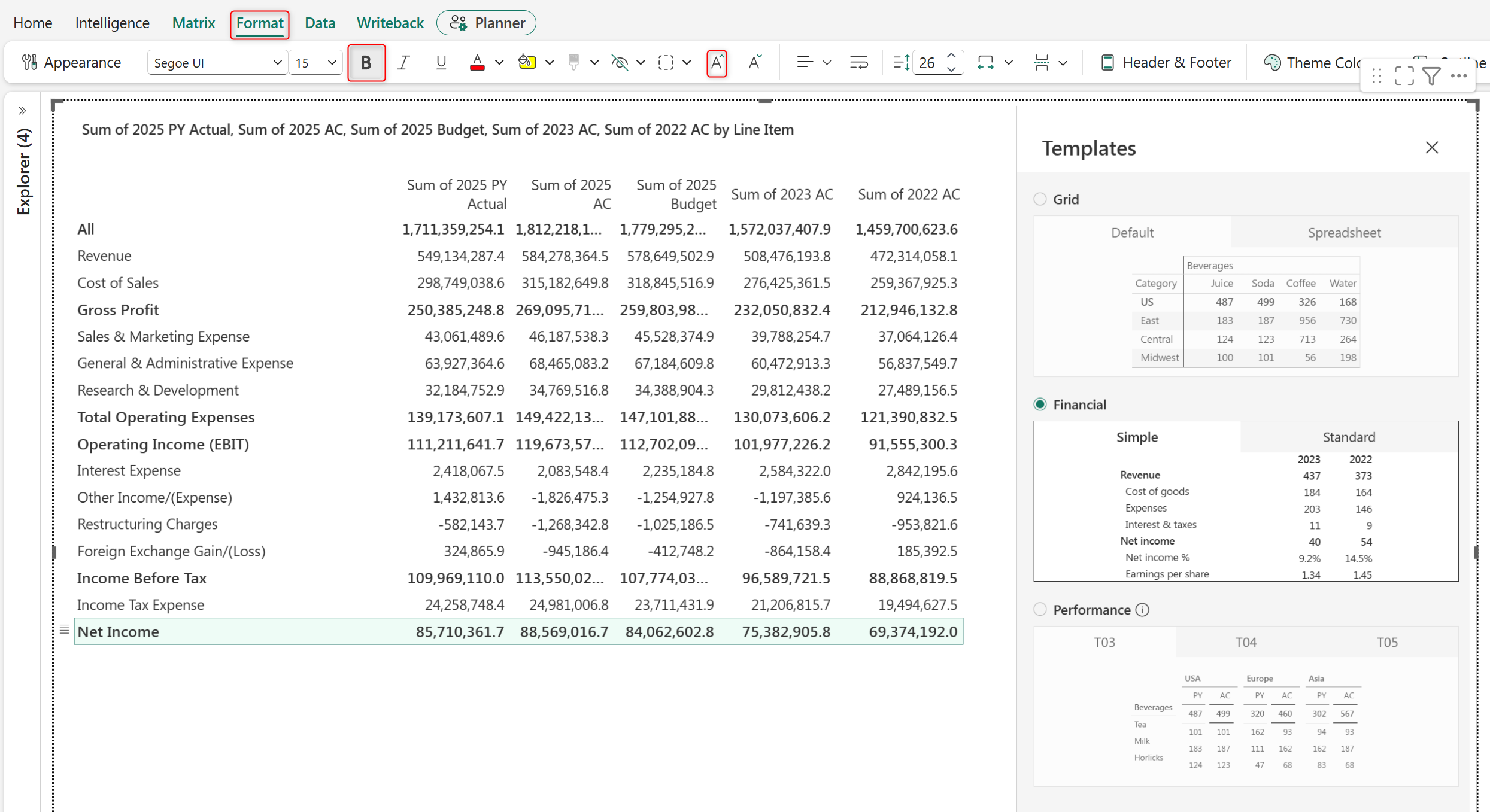
2. Select the total and subtotal rows, such as *Gross Profit, Net Income,* and T*otal Operating Expenses*. In the **Format** ribbon, select **Bold** and increase the font size to distinguish the subtotal rows.
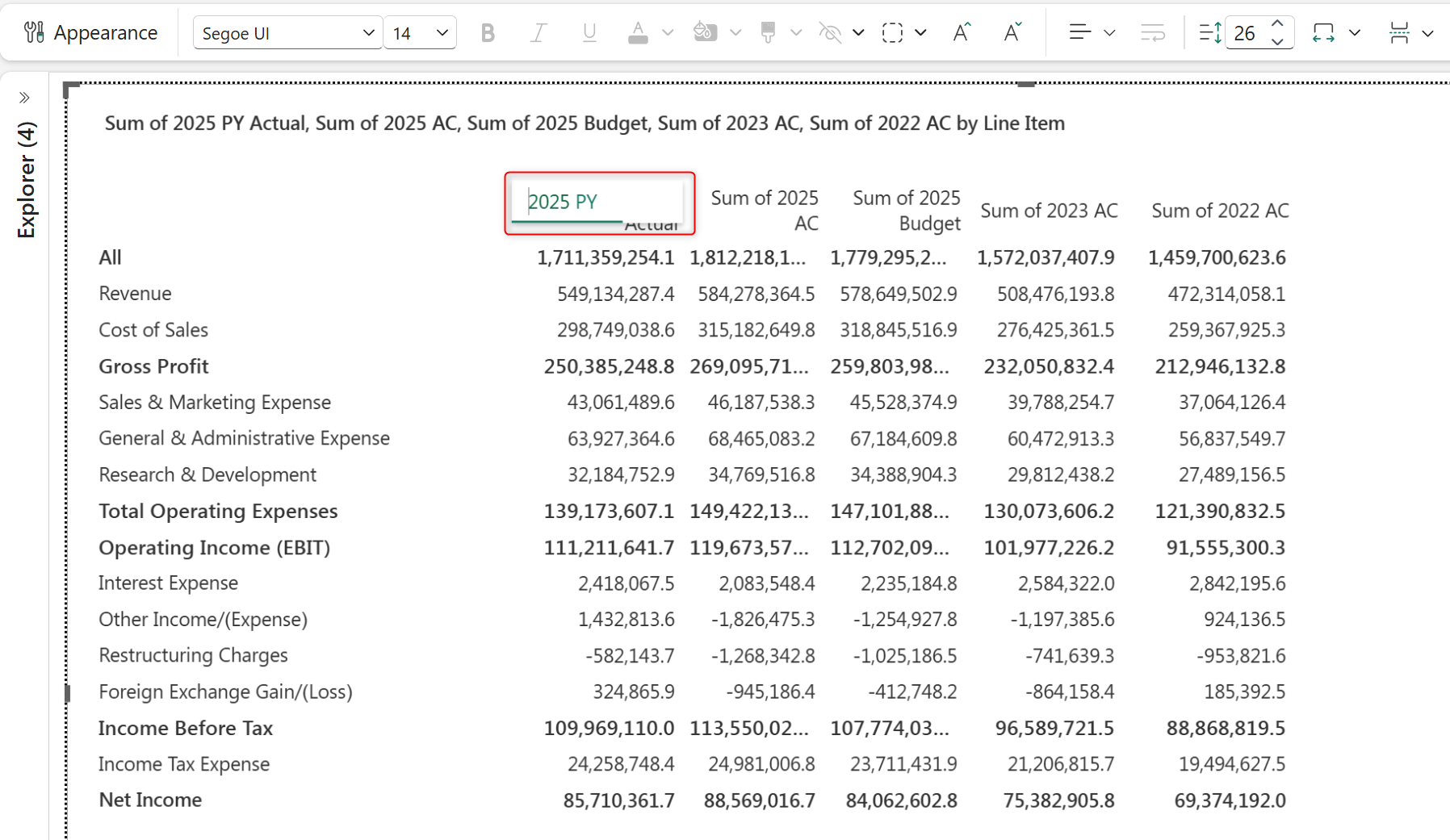
3. Double-click a column header and enter the required name.
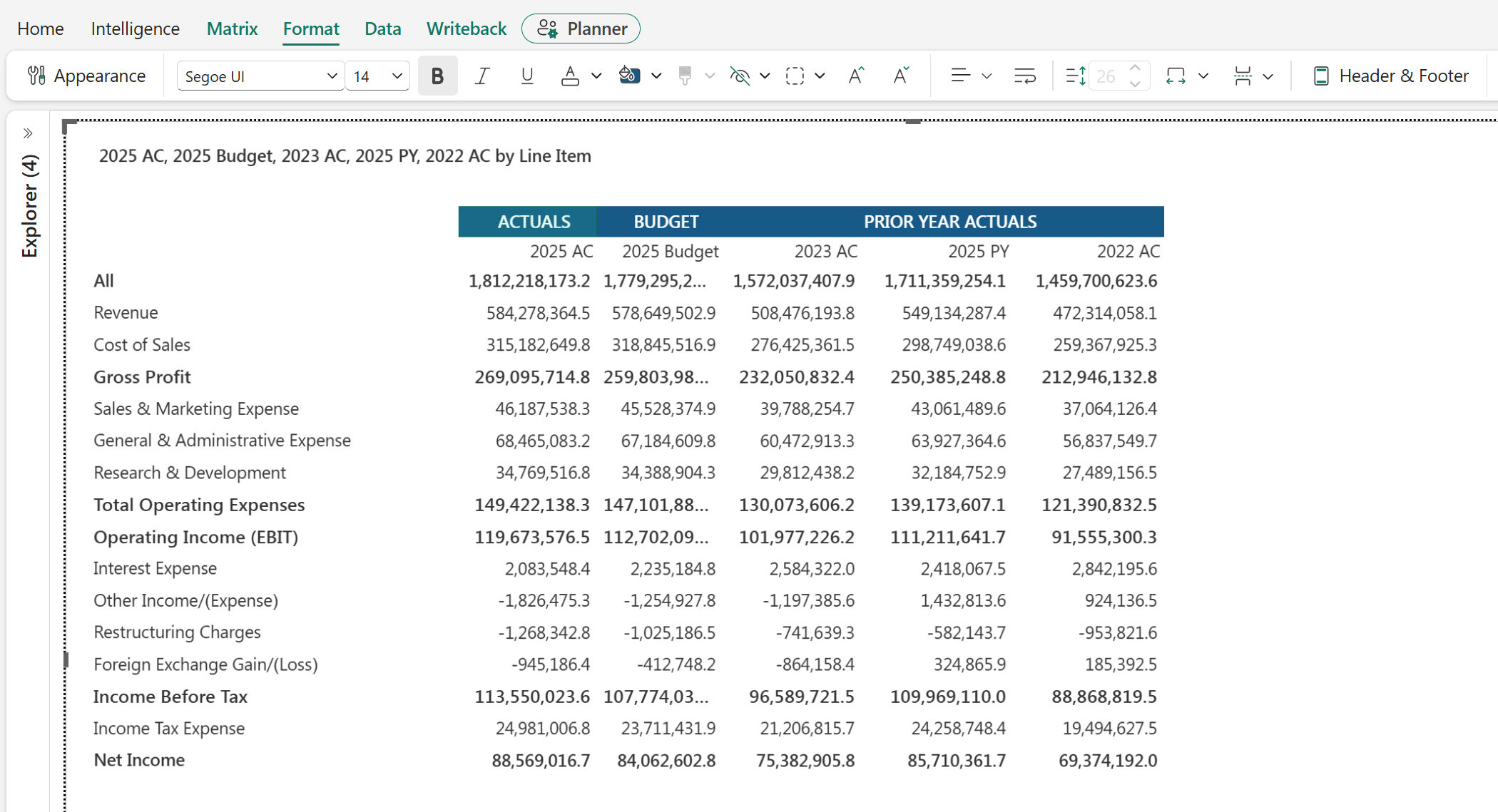
4. Create custom groups to combine related measures, such as prior year actuals, under a single header. Select the measures to group, and then in the **Matrix** ribbon, go to **Layout** > **Group** > **Create Group**. Enter the group name and select Apply.
5. Select the header, and then go to the **Format** ribbon to customize the font and background color.
6. Highlight the total and subtotal rows with borders. Select the row, and then go to the **Format** ribbon and select the **Border** icon. Select **Custom** to define the border color, thickness, and position.
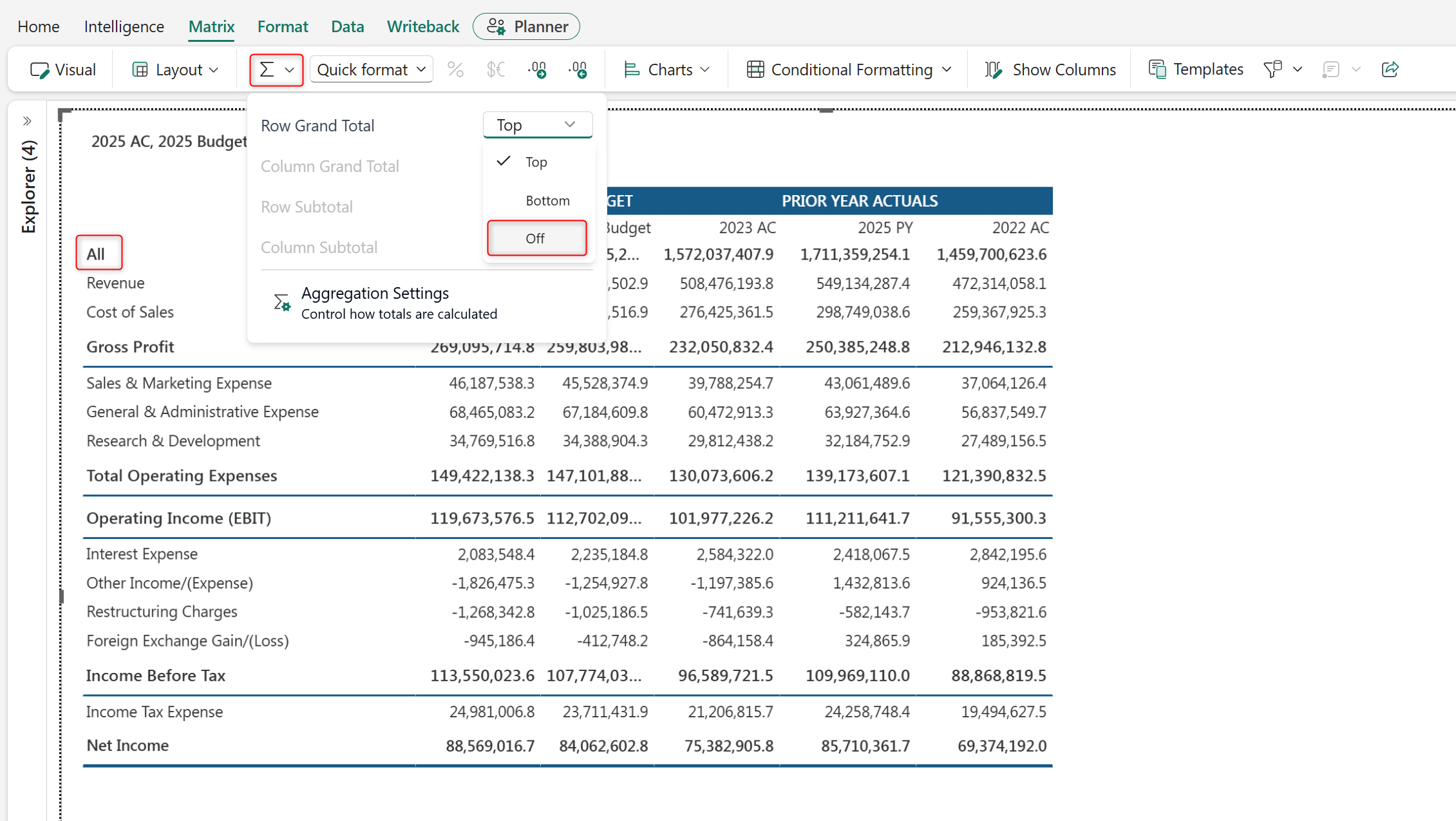
7. The intelligence sheet automatically calculates the grand totals. To hide the grand total row, in the **Matrix** ribbon, select **Aggregation**, then set **Row Grand Total** to **Off**.
### Format numeric values
Format numeric data in your reports by applying scaling, decimal precision, and prefixes to improve readability.
1. In the **Matrix** ribbon, select **Quick Format** to set number scaling at the report level. This setting applies to all the measures in your report.
{% hint style="info" %}
For reports with mixed granularities, select a measure to apply a scaling factor only to that measure.
{% endhint %}
2. In the **Matrix** ribbon, select the decimal icons to increase or decrease the number of decimal places shown for all the measures in your report.
{% hint style="info" %}
To adjust decimal places for a specific measure, select the measure and use the increase or decrease decimal icons.
{% endhint %}
3. Apply semantic formatting to ensure numeric values are displayed with consistent formats. In the **Format** ribbon, go to **Appearance**> **Numbers** and enable **Semantic Formatting.** Select the color and format to display positive and negative values. In this example, negative values are highlighted in red and shown in parentheses.
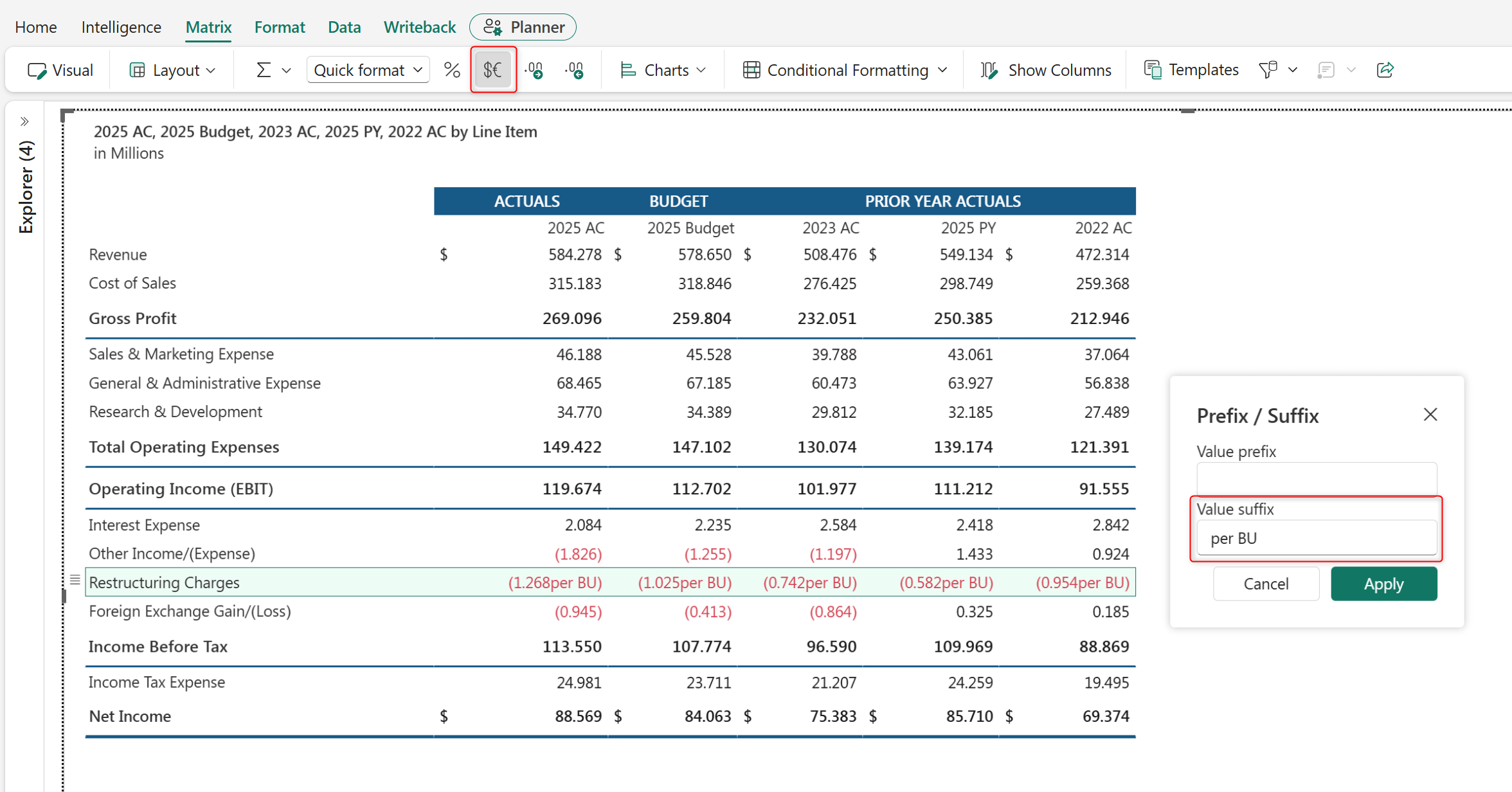
4. Apply prefixes and suffixes to provide context for financial values, such as currency symbols, units, or percentages. Select the required row or cell, then in the Matrix ribbon, select Prefix/Suffix and enter the required value.
### Insert calculated rows
For an income statement, calculated rows automatically derive key financial metrics from existing line items without manual calculations.
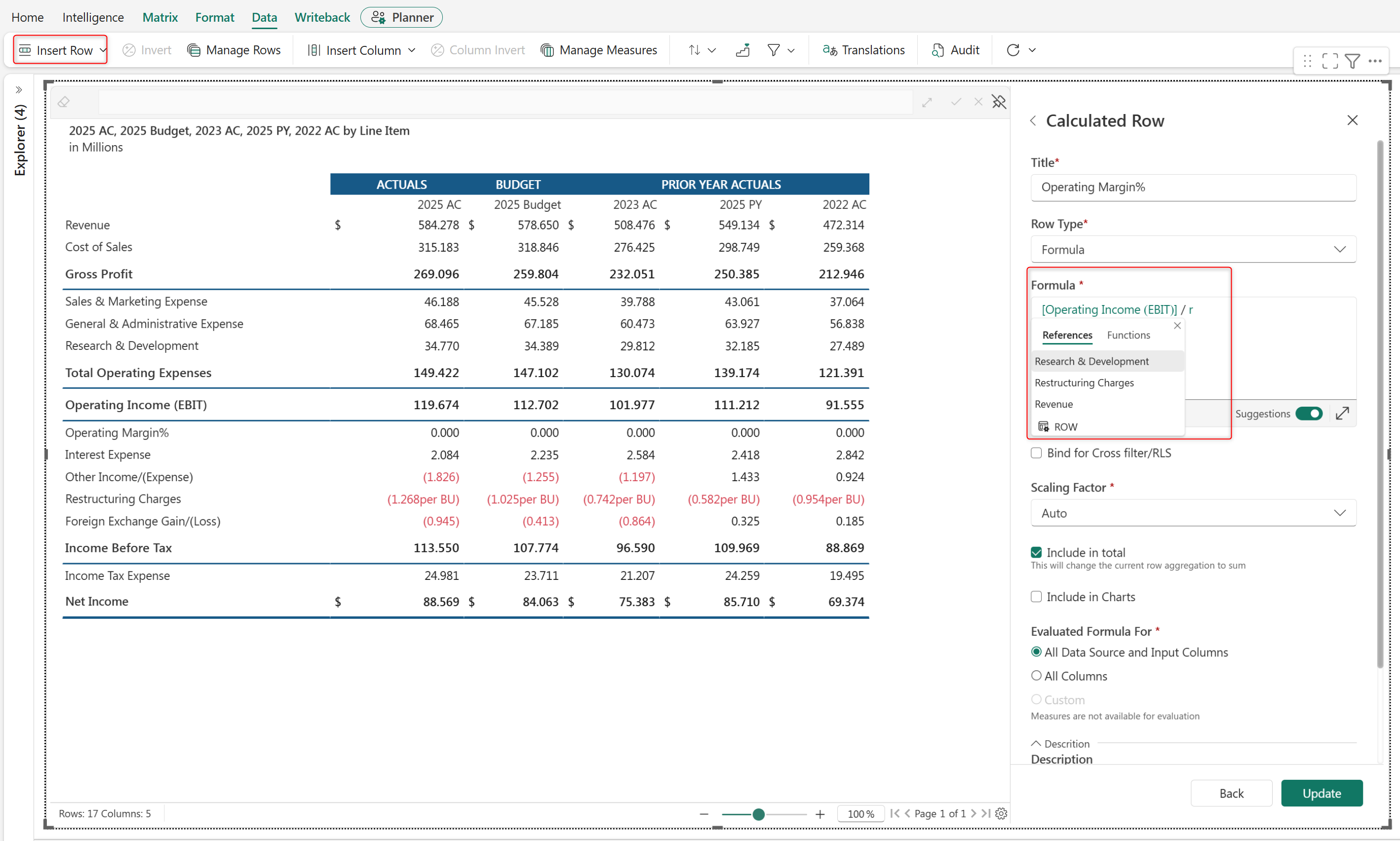
1. Select the row below which to insert a calculated row. In the **Data** ribbon, go to **Insert Row** and select **Insert Formula**.
2. Enter the calculation in the **Formula** section.
3. Press **Ctrl + Space** to open suggestions while writing a formula. This action helps you quickly discover available fields, functions, and syntax. Use dimensions and measures in your formula from the **References** tab.
4. To convert a value to a percentage, select the row and select the percentage icon in the Matrix ribbon.
### Insert data input rows
Use data input rows to capture planning values and manual financial adjustments without modifying the underlying source data.
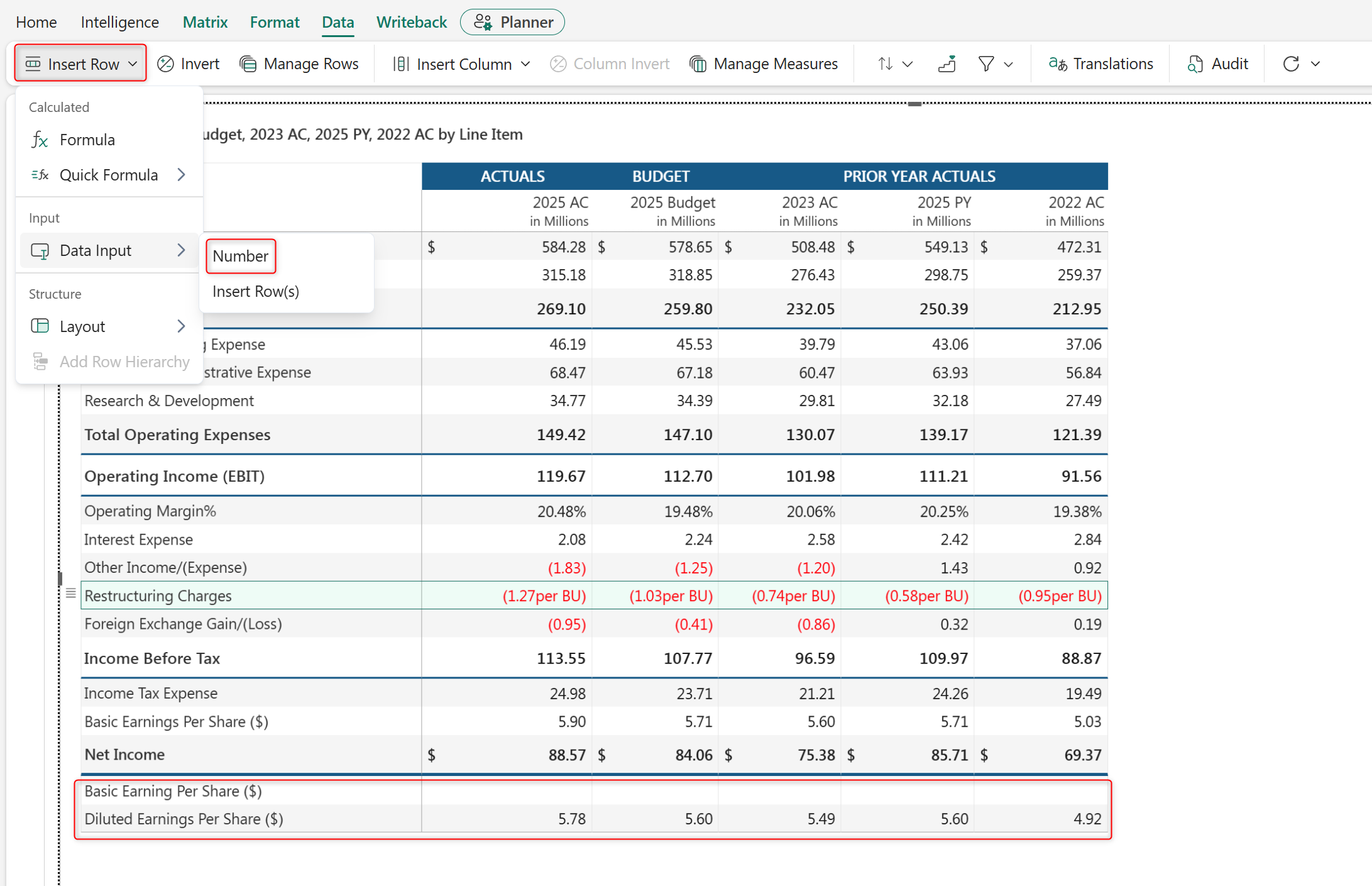
1. Select the row below which to insert a data input row. In the **Data** ribbon, go to **Insert Row** > **Data Input** and select **Number**.
2. Enter data. Select the row and change the scaling in the **Matrix** ribbon as required.
3. To create a hierarchy, insert a parent-level row and change the formatting to match other parent line items in your report.
4. To create a parent-child hierarchy, select child rows and select the **Increase Indent** icon in the **Format** ribbon.
### Add a custom header
Add a header to show the report title, reporting period, and other summary information.
1. Hover over the header section and select **Edit** from the **More options** menu. Alternatively, double-click the header to edit.
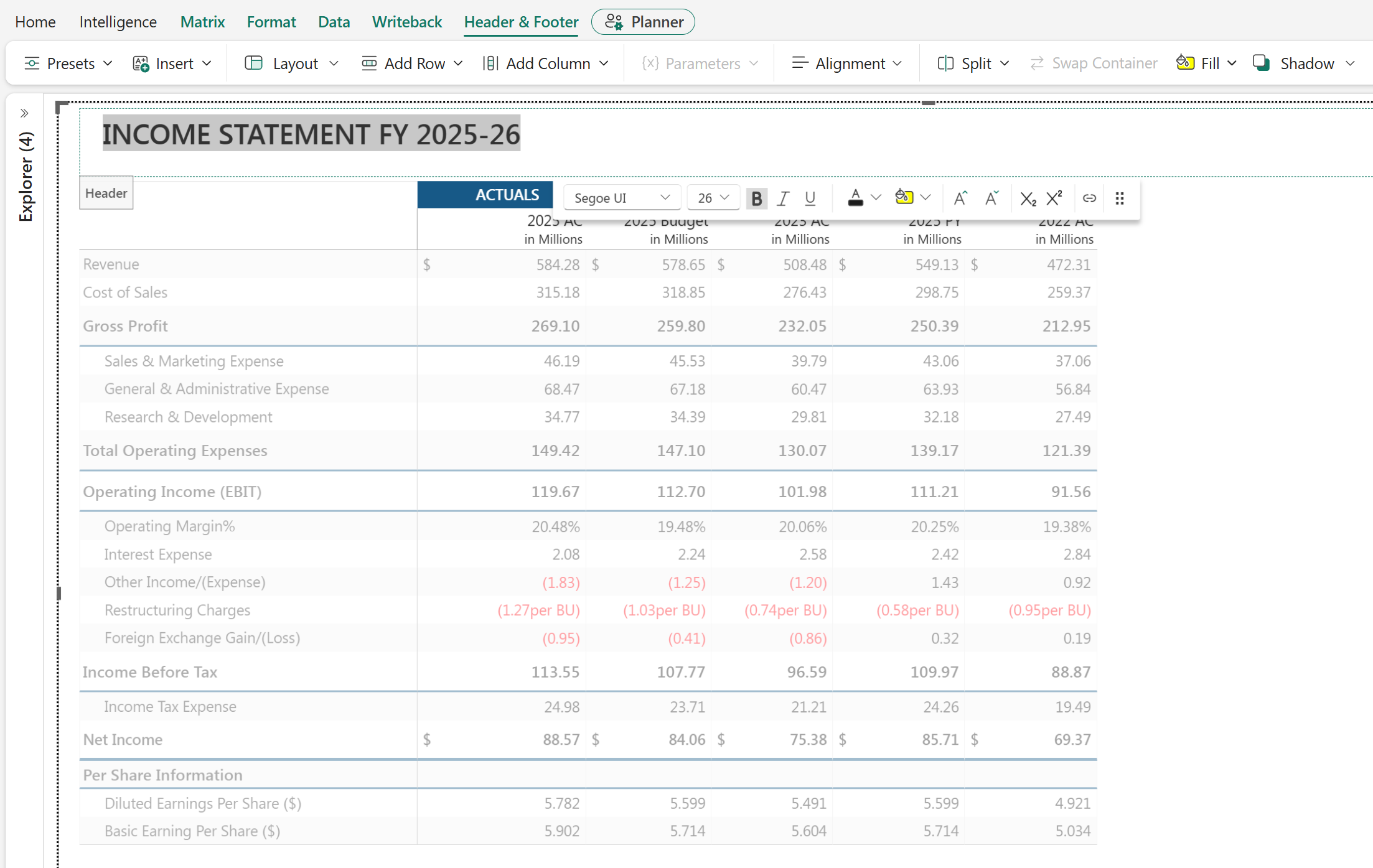
2. Remove the default title and enter a custom title. Select the text and use the floating menu to apply formatting such as font color and size.
3. Use the **Header & Footer** ribbon to change the title alignment and background color.
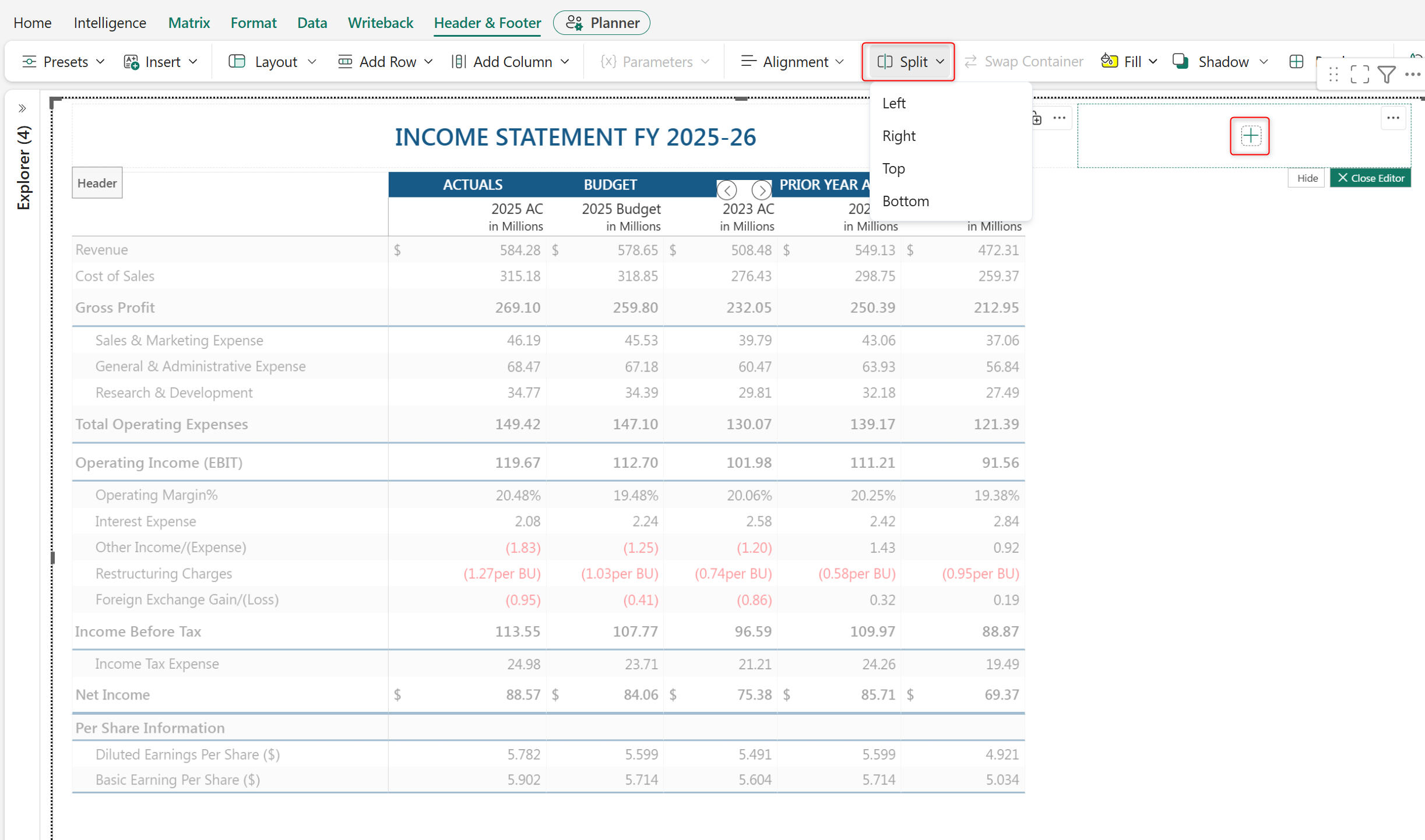
4. Select **Split** to add new containers in the header.
5. Select the **+** icon in the container to insert a logo or additional text. Hover over the container and use the drag handles to resize.
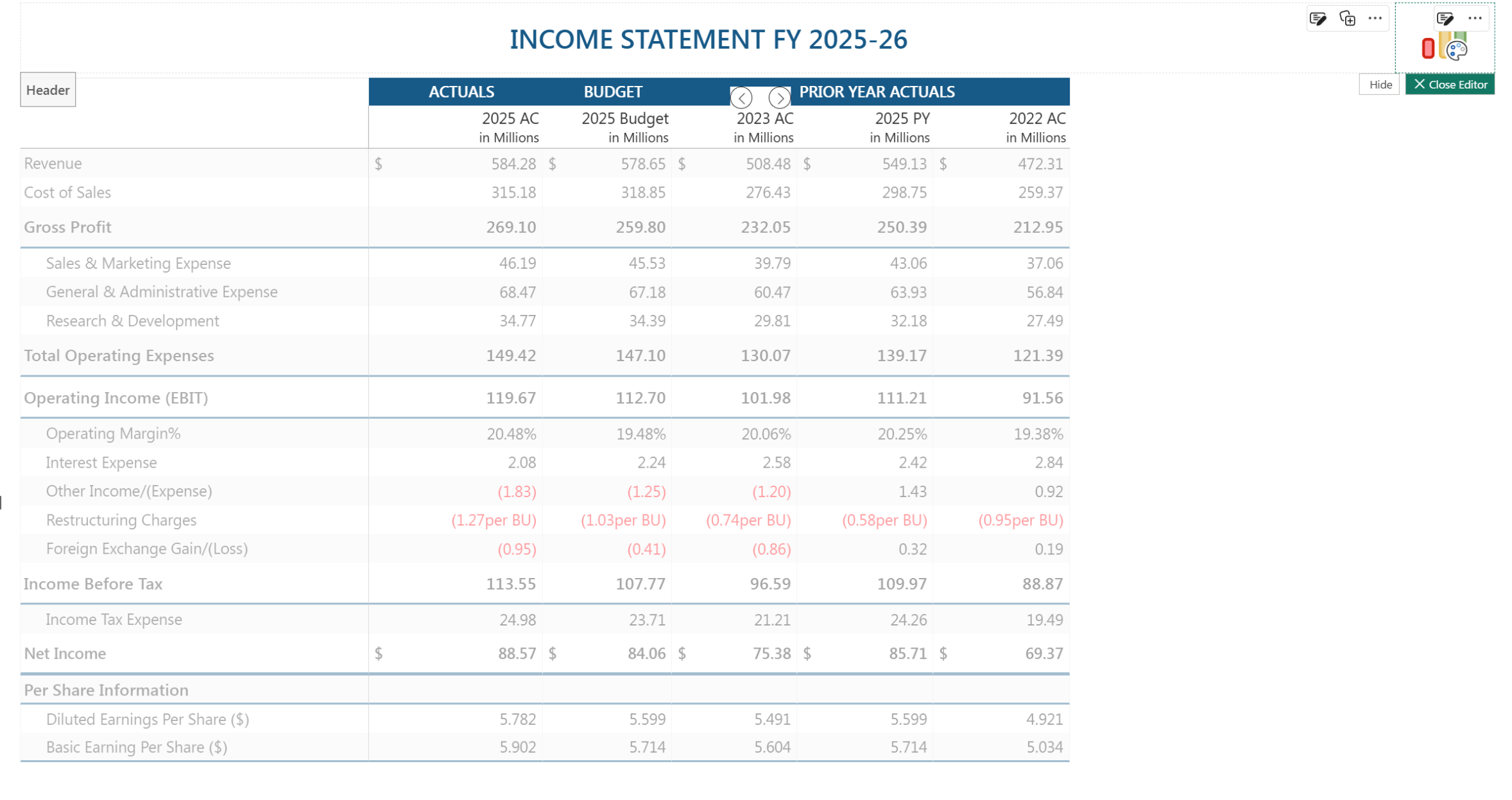
6. To insert logos, upload the image and select **Save**.
7. Select **Close Editor** or click anywhere in the canvas to close the header editor.
### Export reports
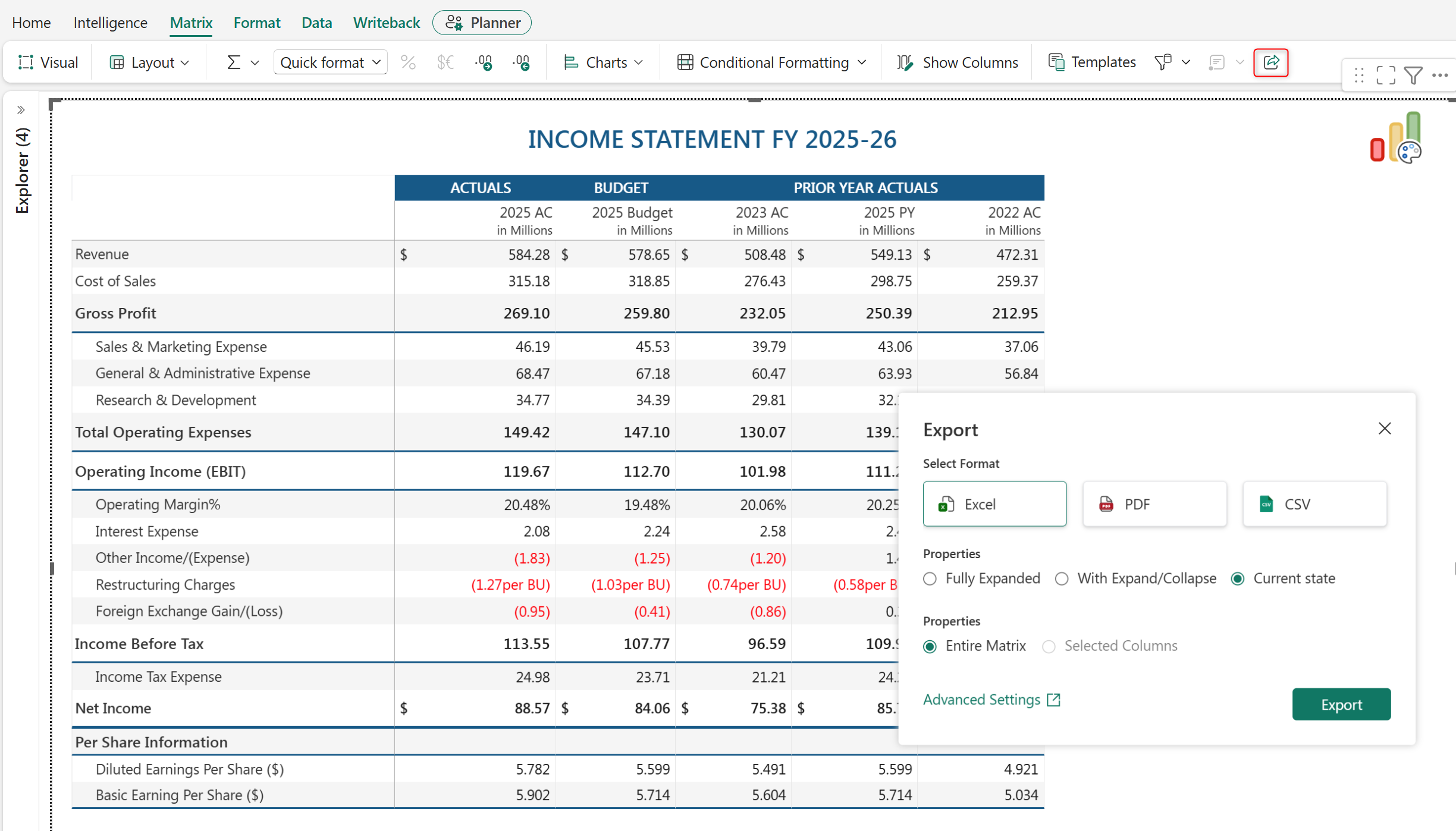
Select the export icon to create fully formatted Excel and PDF exports for distribution.
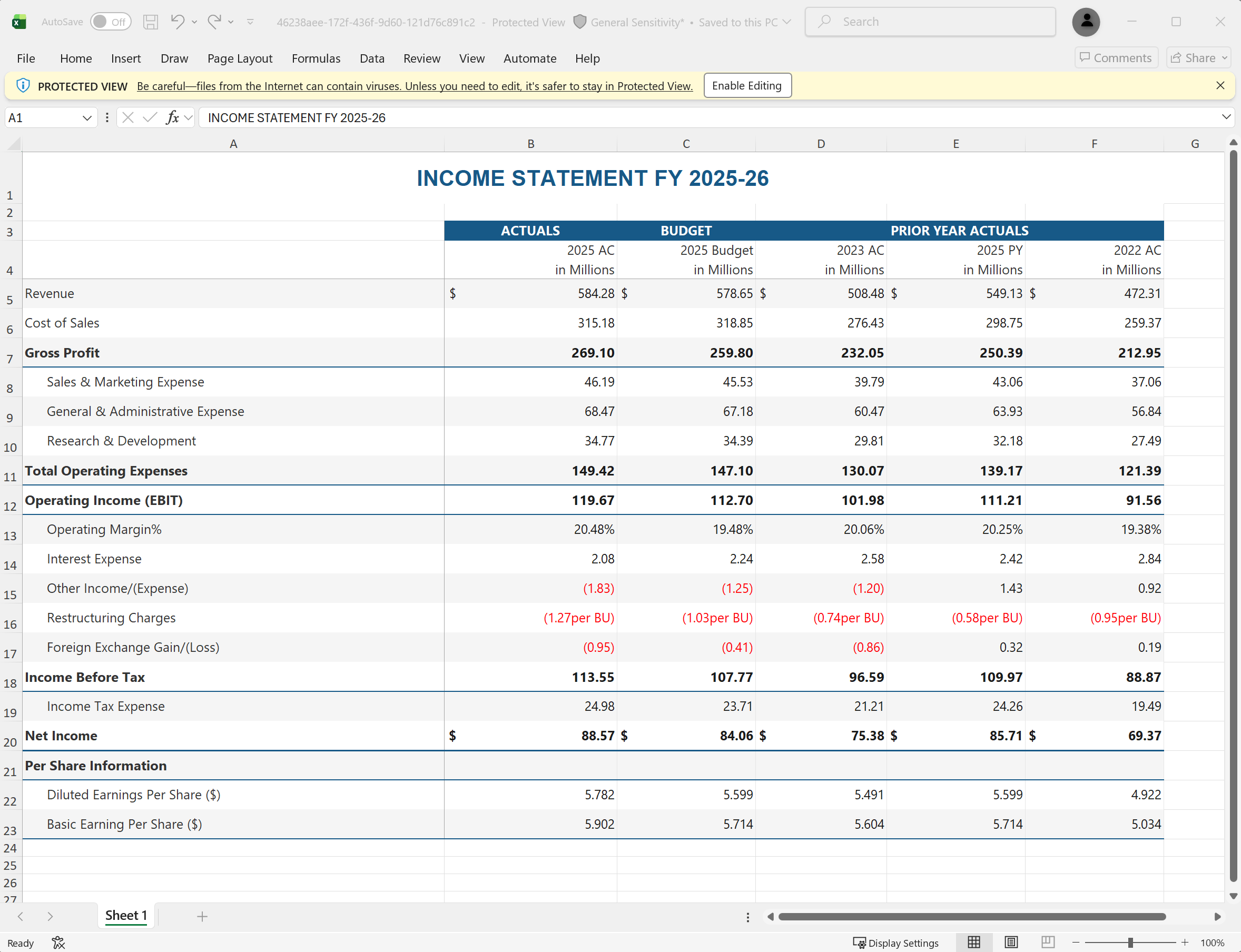
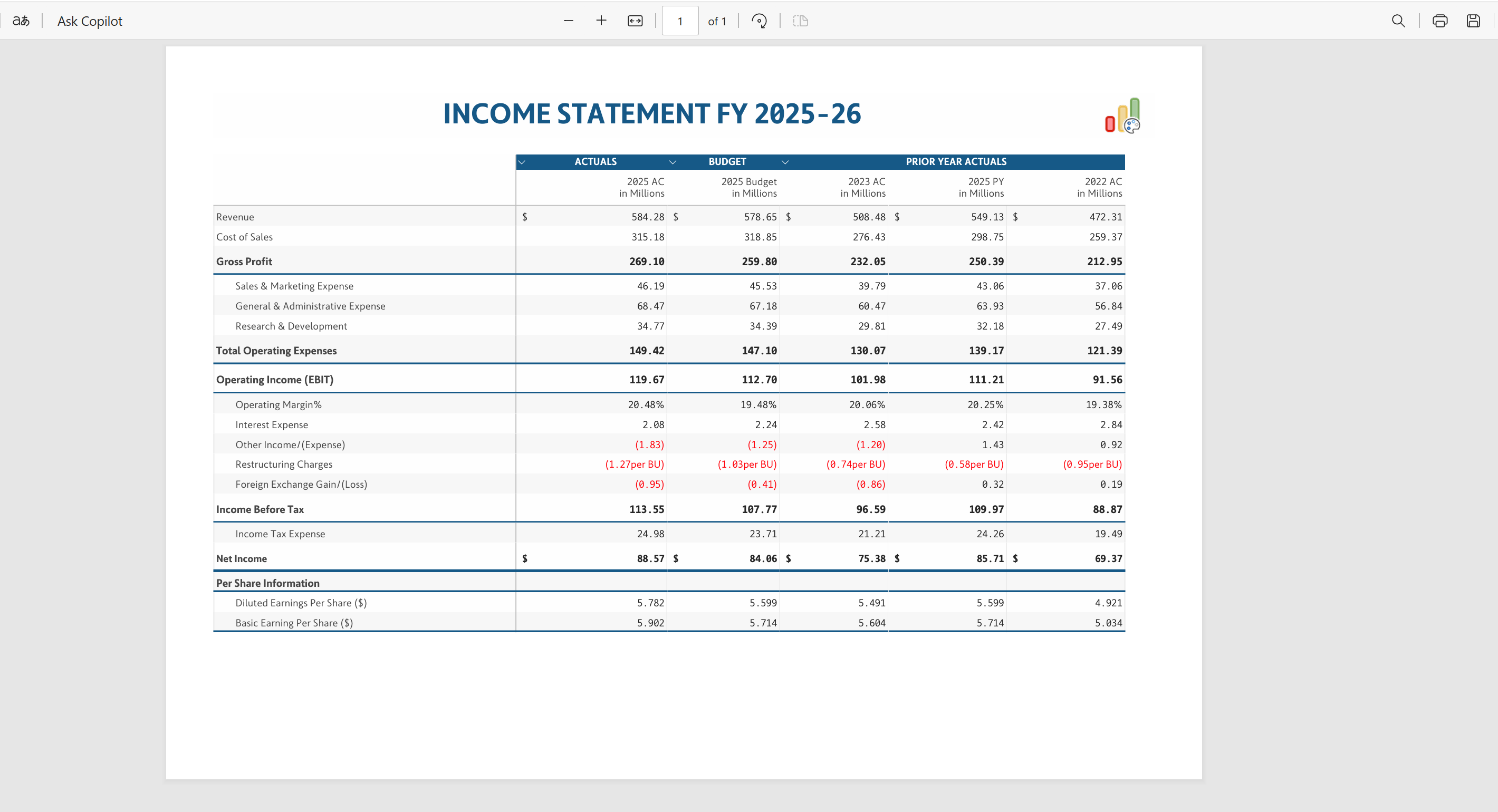
The following screenshots show sample Excel and PDF exports.
Excel export:
PDF export:
---
# Agent Instructions
This documentation is published with GitBook. GitBook is the documentation platform designed so that both humans and AI agents can read, navigate, and reason over technical content effectively. Learn more at gitbook.com.
## Querying This Documentation
If you need additional information that is not directly available in this page, you can query the documentation dynamically by asking a question.
Perform an HTTP GET request on the current page URL with the `ask` query parameter, and the optional `goal` query parameter:
```
GET https://docs.fabricplan.com/intelligence-sheets/how-tos/build-financial-reports.md?ask=&goal=
```
`ask` is the immediate question: it should be specific, self-contained, and written in natural language.
`goal` is optional and describes the broader end goal you are ultimately trying to accomplish on behalf of the user. GitBook uses it to tailor the answer towards what is most useful for that goal.
The response will contain a direct answer to the question and relevant excerpts and sources from the documentation.
Use this mechanism when the answer is not explicitly present in the current page, you need clarification or additional context, or you want to retrieve related documentation sections.